Normal users may request a new Password via the login screen, however, for security reasons that does not apply to Admin accounts. An Admin always needs to contact us for a new password – Kjell Post post.kjell@gmail.com or Jørgen Brandt jb@photo-competition.software
Step 2 – Create a “Laugskonkurranse” competition
We suggest you work in 2 browser windows for this step. This can be with 2 different browsers or 2 windows in the same browser.
In both windows – Go to Tab “Competitions”. In one window you find a previous version (let’s call it original competition) of a “Laugskonkurranse” that you intend to be the model for a new “Laugskonkurranse” edition.
You may have to turn “Show only active competitions” to OFF in the window where the previous competition is, as only active competitions is shown by default..
For the Original competition click on “Edit”
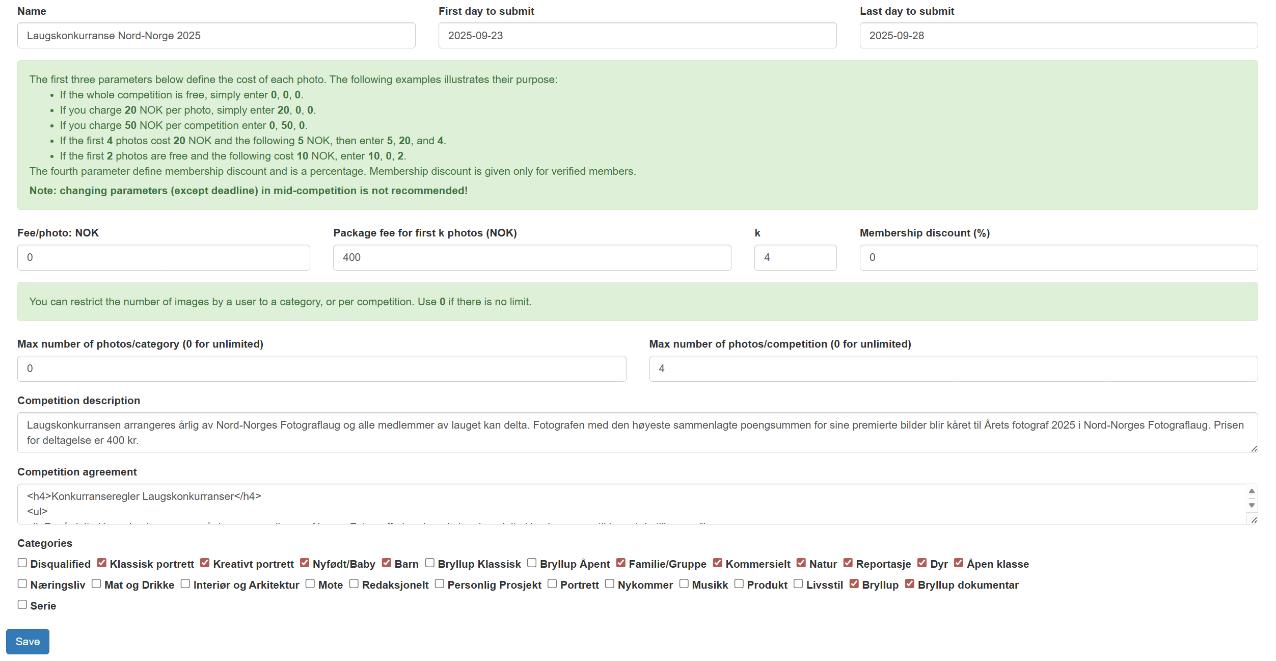
Once you click Edit – at the top of your Browser window the parameters of the original competition will be shown.
To better understand the use of the different parameters – you could study the “INFORMATION needed pr competition in Generic Competition Software”-PDF
Check that all parameters in the original competition are as you would like them to be in your New Competition. If so, you can copy/paste the individual fields one by one to your new competition.
In the browser window for the New Competition, click “New Competition” bottom to open an empty version of the Competition parameters
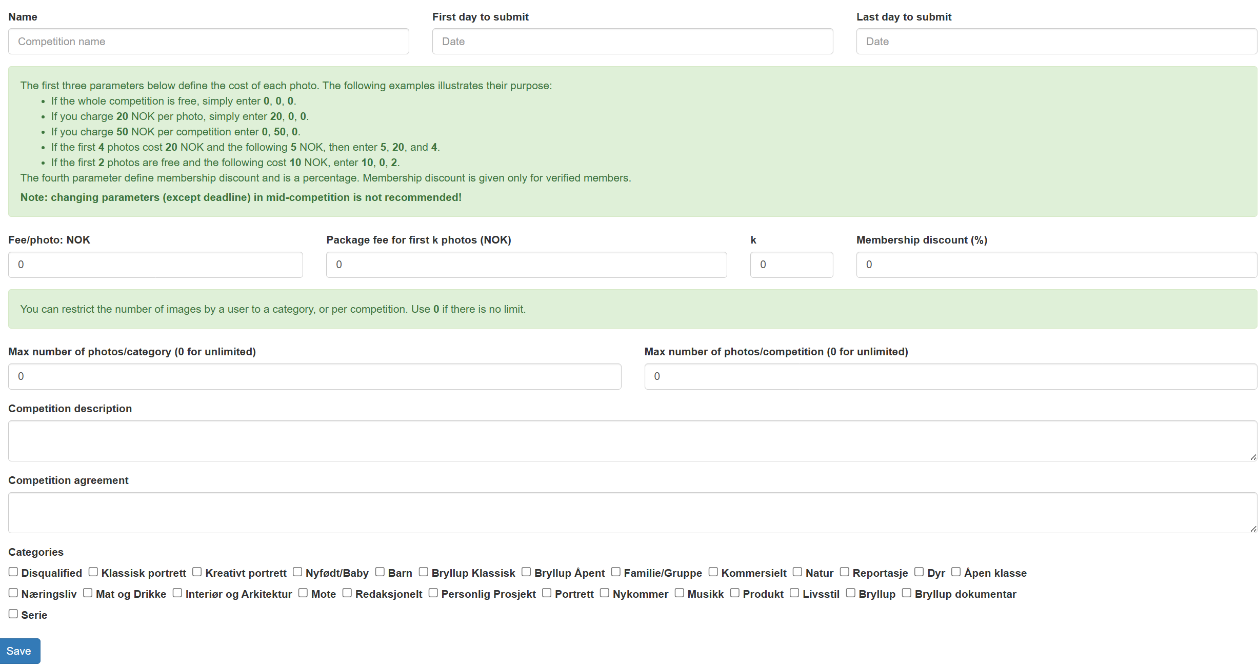
Figure 1 Original Competition Sample
Figure 2 Empty – and ready to fill – competition parameters
Insert a unique name for the new competition – f ex “Laugskonkurranse Area Year”. Then copy paste – or enter new info – as needed to create the new competition. Remember to fill in ALL relevant fields including which CATEGORIES the competition has.
If you need new categories – please contact us.
Note: You can return to the competition – and via Edit – update/change the information. You can now close the Browser window with the original competition.
Step 3 – Create a Headjudge
If the Headjudge already has a Headjudge account, you can skip this step.
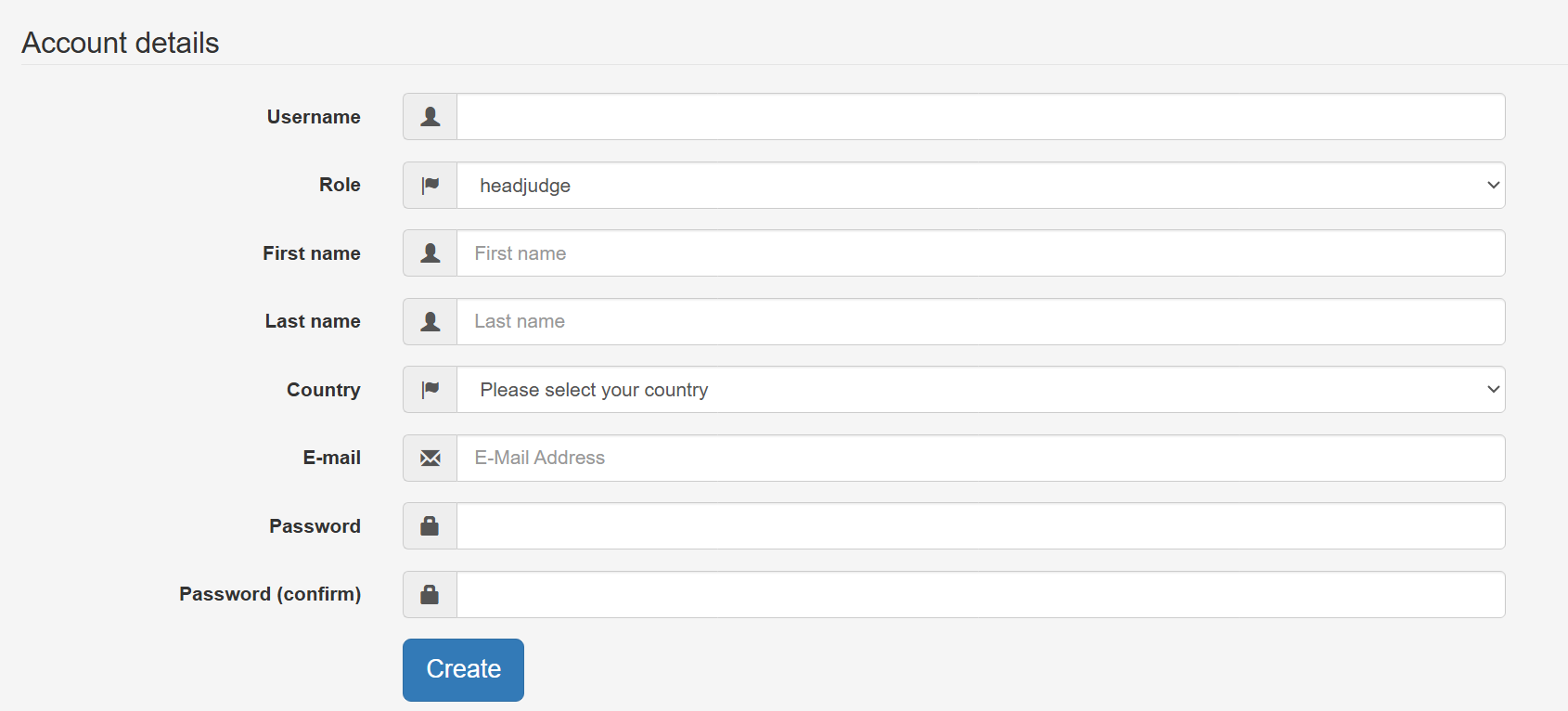
If you need to create a Headjudge account – Go to Tab USERS. Click CREATE USER
Figure 3 User creation dialog box – Headjudge account
Fill in Username: We suggest using “Headjudge: Name” – maybe also the Year. Makes it easier for users with multiple accounts to select the one they need to use.
Remember to set ROLE to Headjudge, fill in the rest of the fields, all of them.
You select the password – write it down so you can provide the new Headjudge with this information.
Click CREATE
For BATCH creation of accounts – see info in separate PDF on this subject.
Step 4 – Assign a Head Judge to the specific Competition
Go back to the COMPETITION tab and find the relevant competition.
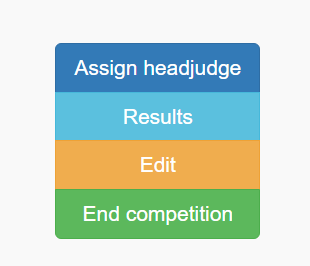
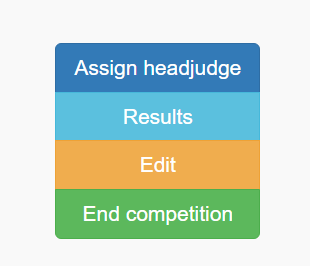
Use “Assign Headjudge” to assign the Headjudge for that specific competition. You click to set a Checkmark by the relevant name.
For a Headjudge to use the Live Interface – we suggest sending them the PDFs
UK – JUDGE – LIVE Judging
UK – HEAD JUDGE – LIVE Judging
UK – LIVE LINK – LIVE Judging
And if you do Validation – also – the PDF “Headjudge-validation”
You may assign more than one Headjudge if needed.
Step 5 – Invite Photographers to Submit images for the newly competition
You can now invite Photographers to upload and submit images for the competition. If needed – give them the PDF “How to enter in a Competition” and “Validation Process for Users”
Normal users may request a new Password via the login screen. There is a FAQ on login in that screen.
The 2 mentioned PDFs are also linked in the Photographers User interface (left side)
Step 6 – Create Judges accounts
Go to “USERS” tab – Click Create User
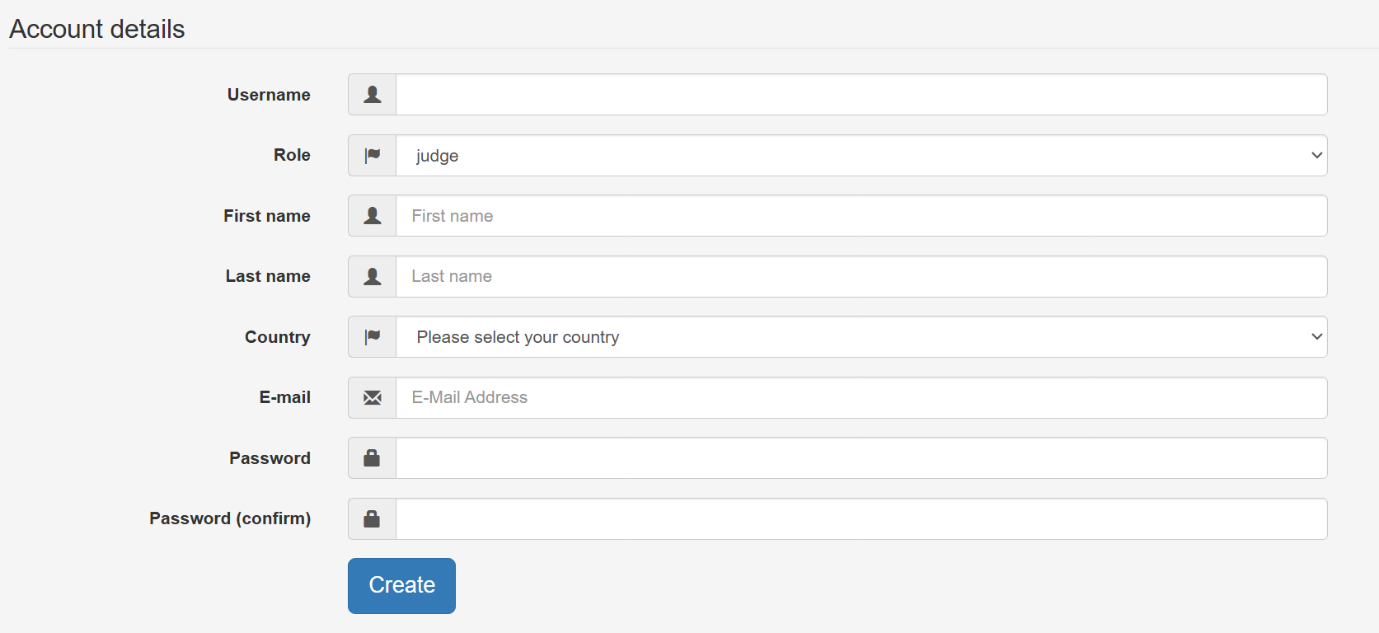
Figure 4 User creation dialog box – Judge account
Fill in Username: We suggest using “Judge: NameYear”. Makes it easier for users with multiple accounts to select the one they need to use.
Remember to set ROLE to Judge, fill in the rest of the fields, all of them.
You select the password – write it down so you can provide the new Judge with this information.
Click CREATE
Invitation pr judge may be sent from the User tab- relevant judge (Action drop down menu). Remember to give judge the Password-
For BATCH creation of accounts – see info in separate PDF on this subject.
Step 7 – Check relevant TEMPLATES
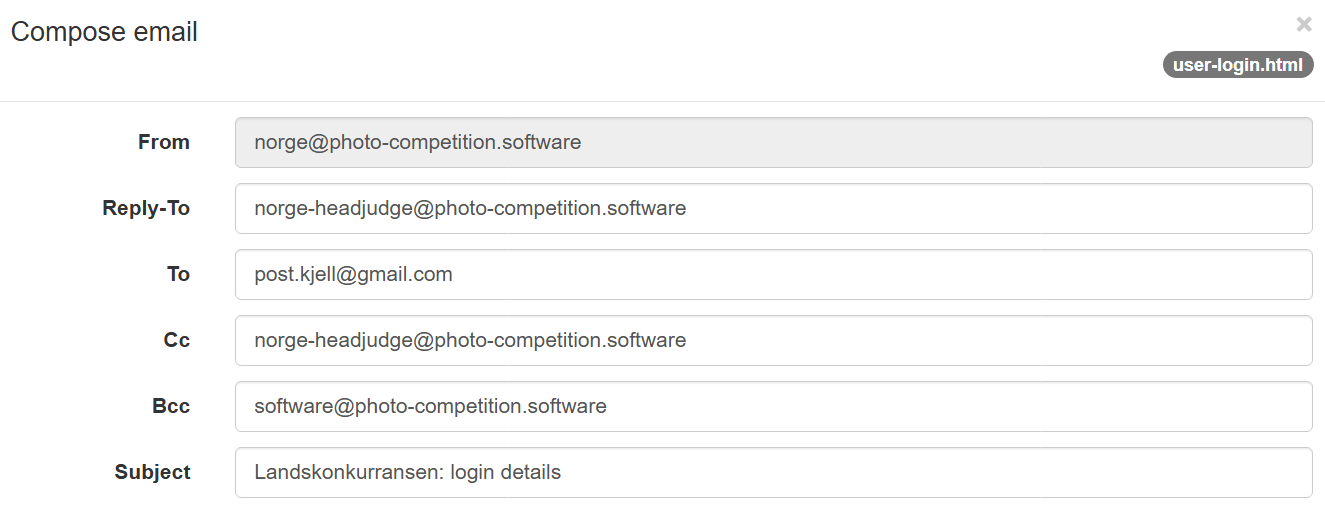
Everywhere we use a template to email someone – like inviting judges to judge – we do this initial from a TEMPLATE, which you find in the TEMPLATE TAB
Figure 5 Sample – here “Compose Email for User login” based on “user-login.html” tamplate
In an email dialog window – top right – you see the name of the template which corresponds to a template in the template tab, below f ex “user-login.html”
Edit – when needed – the template. Click its name and do the edit. Remember to “save”.
In the top of the Template TAB you see which variables can be used in the templates and what they Mean.
In f ex the above “Compose Email” window – when about to send email – you can edit who get the email, the subject and the content of the email. You can f ex insert at password for a user.
It can be a good idea, at least for some, to TEST email before you sent for a user. Replace email addresses and send for yourself. Repeat when satisfied with the content – and send for user.
Step 8 – Create Judging Rounds
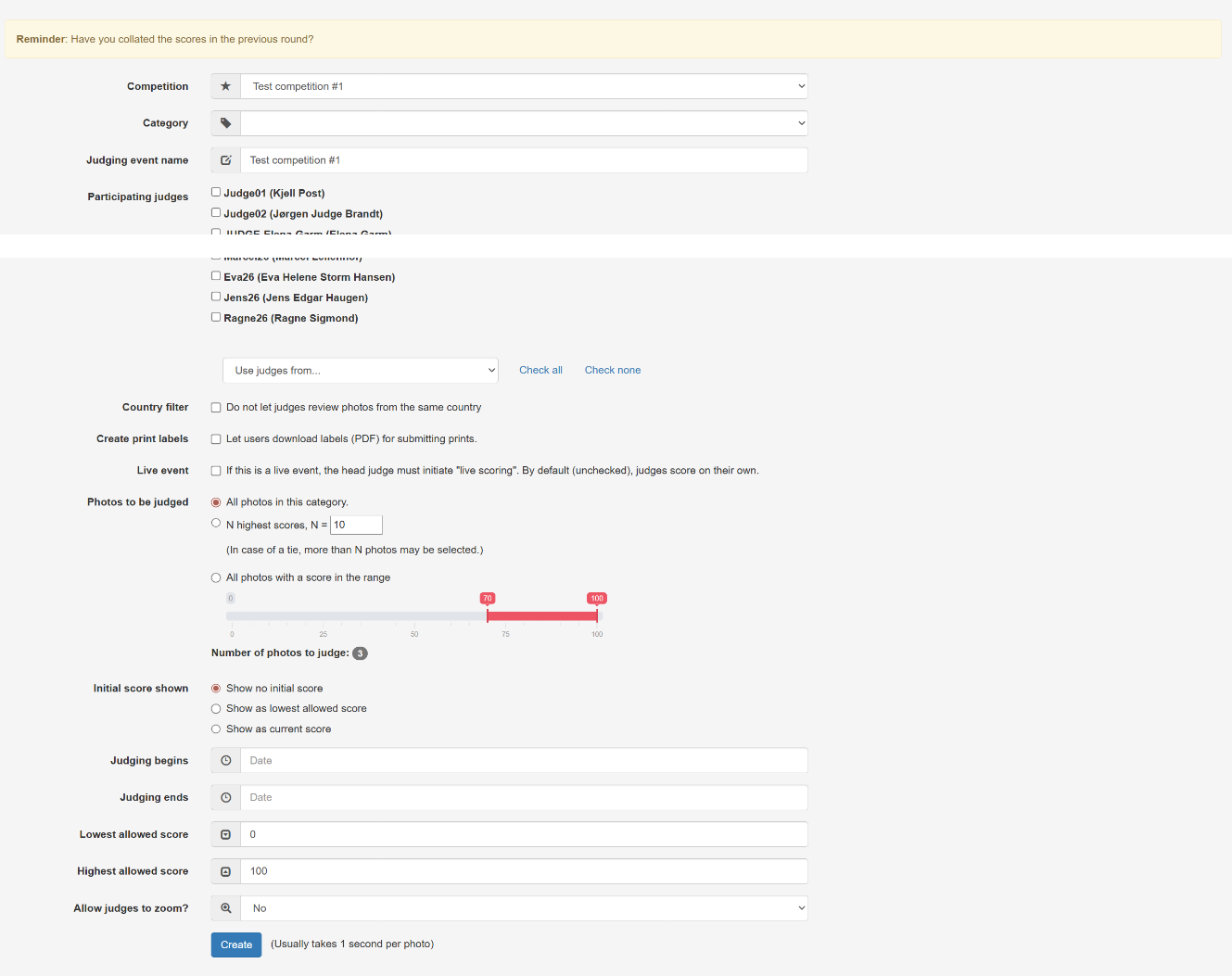
After the submission period is over you can create Judging Rounds. Go to the Judging-TAB and click “New judging event”
Figure 6 Judging round creation dialog window
Select the correct Competition
Select the relevant Category
Judging Events should have a unique name. The interface will suggest “Competition Name Category name”, which in most cases would work. If the Judging Event is a 2nd (or more) round if judging the category (or parts of) you will need to ADD f ex an explanation (like Final) to the “Judging Event Name”
Select which Judges you would like to use for the event. Do this by setting “checkmark” by each judge. Alternatively, you can select a “Use Judges from:” in the scroll down menu.
Please see the PDF “Interface for New Judging Event” for more information.
If you want judges to “preview” images before judging – in the list of Judging events check “View Only” for the relevant Event.
Before doing live Judging – remove the “View Only” and check the “Live scoring” for the relevant category(eis).
At this point it is a good idea to “become” a judge – and verify all looks as expected for a judge. Then return to the Admin interface with your Admin account.
Step 9 – Invite Judges to judge
You can invite judges to judge in 2 ways
In Users TAB – via “Actions” – Email. Here you invite Judges individually and may give them their Password
In Judging TAB – via “Per Category Invite” – Invite for Judging
Need to run a photo competition in your country, your club or amongst friends? Feel free to contact us! We can assist you, not only with the competition but also training for judges.


 In both windows – Go to Tab “Competitions”. In one window you find a previous version (let’s call it original competition) of a “Laugskonkurranse” that you intend to be the model for a new “Laugskonkurranse” edition.
 In the browser window for the New Competition, click “New Competition” bottom to open an empty version of the Competition parameters
 Go to “USERS” tab – Click Create User
 Everywhere we use a template to email someone – like inviting judges to judge – we do this initial from a TEMPLATE, which you find in the TEMPLATE TAB
 After the submission period is over you can create Judging Rounds. Go to the Judging-TAB and click “New judging event”