Objective The Validation of submissions is intended for use by an optional Validation Team/Committee in a competition. The Validators/Staff can here go through all submitted images in a competition and mark any image they consider relevant for the Validation Team/Committee to talk about.
The individual Validator(Staff) can:
Easily see assigned categorie(s) to Validate
Easily see an overview of the individual categorie(s)
Report an image, including giving a reason why, for the rest of the Validation Team/Committee to speak of. Image is in users interface marked with red and the comment shows up in the Validation Team/Committee Chairs interface ready for handling.
Pass an image with no comments – the image is then marked in green
Login with your Staff Account – note that your selected “user + password combination” brings you to the relevant user interface in case you have more user accounts.
If you have forgotten your “user + password combination” – please refer to the Log In FAQ
Validator (Staff) Overview
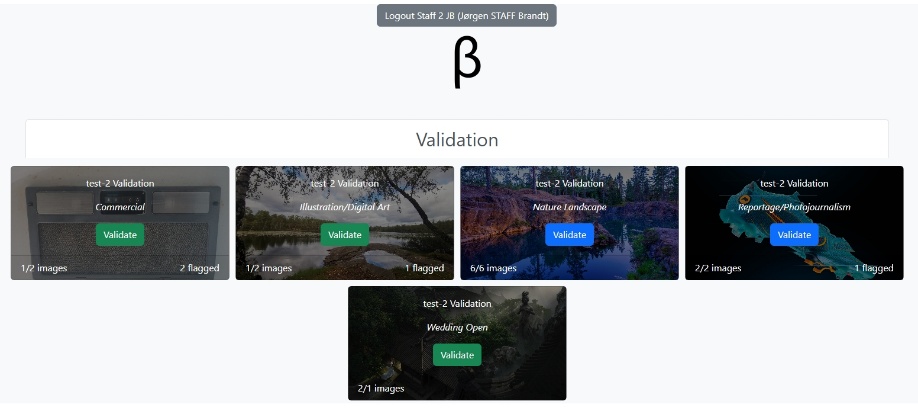
Once logged you will see an overview of the categories you are asked to Validate.
Click on a category to start going through the images
The Overview page will give you several kinds of information.
Pr. Category you will see
Competition Name
Category
Validate if images need to be viewed
Validate if all images are viewed
x/y images to let you know progress
z flagged to let you know flagged images
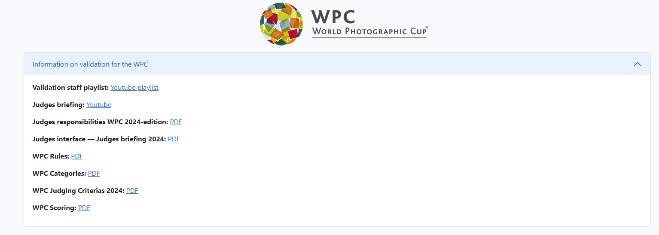
Scroll down with more information (optional pr competition)
Expanded a list of relevant PDF or Video files (sample here is from WPC, note content varies with the individual competitions)
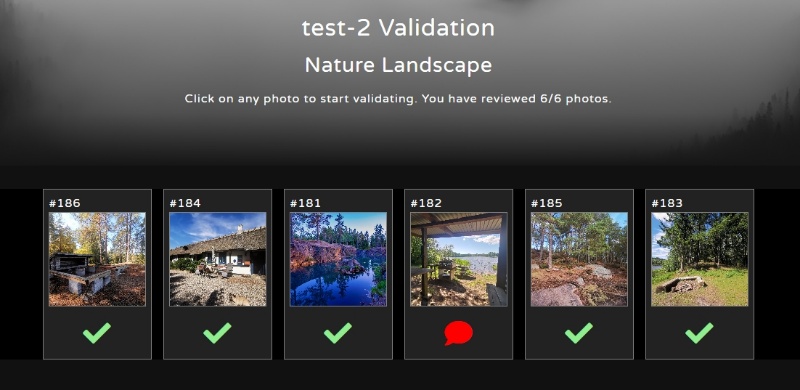
Category View Click on a category to view get an overview of that category.
Initially each image will NOT have any marks, you will only see image number (#xxx) and a thumbnail of the image.
Viewed without remark ¦
Viewed with remark made
(hover the red bubble to see remark)
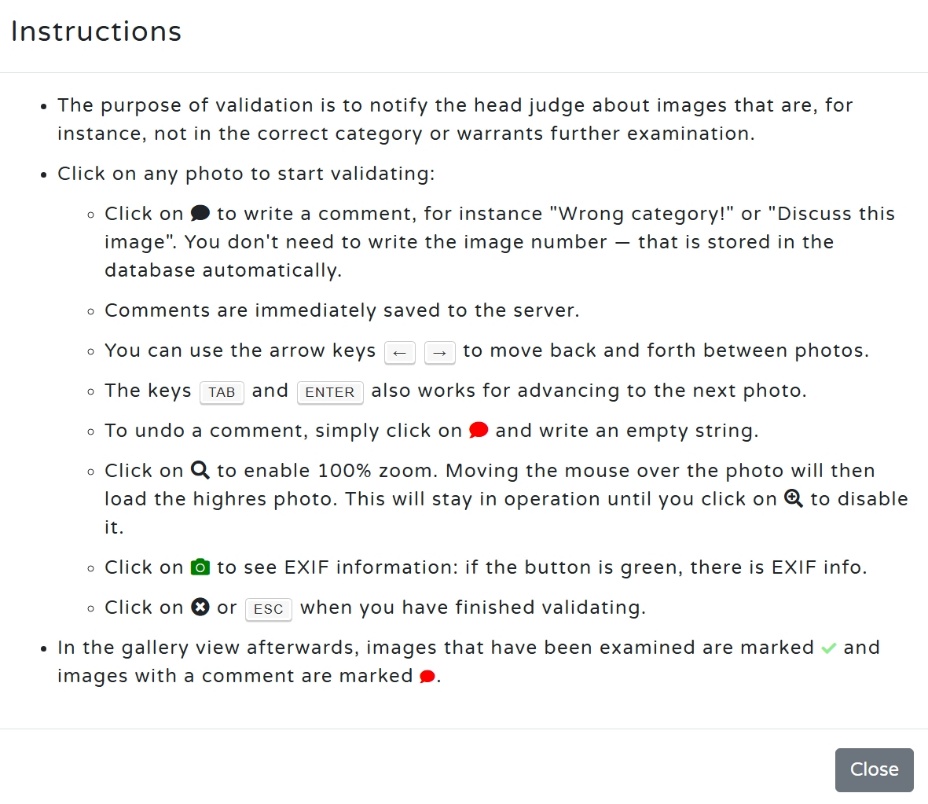
In the top right corner, you have access to Help and Exit
Click on Help to see
Image view
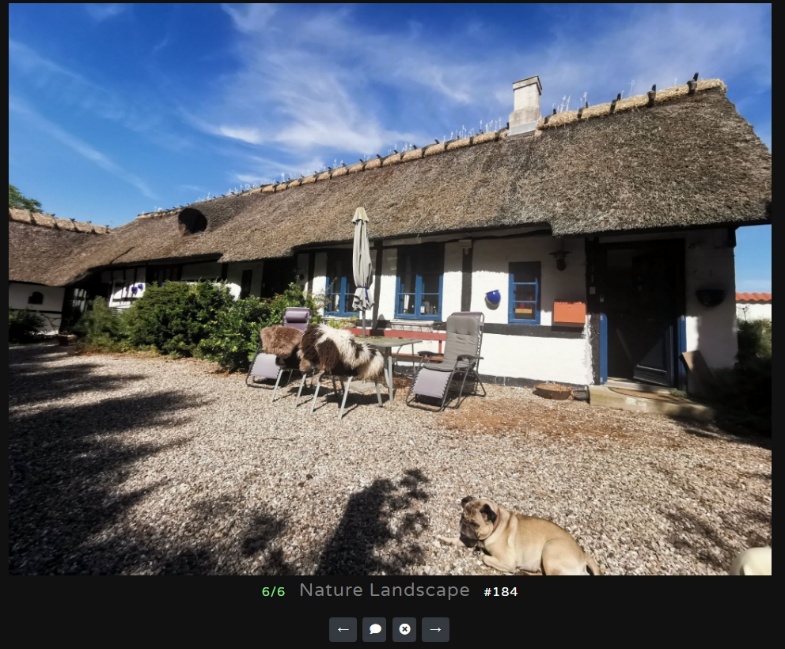
The image view window displays, beside the image:
x/y indicating you are viewing image x of y images
Category name
Unique image no / ID
Navigation/tool bar
Click on Enlarger glass / + to see in image in 100%, i.e. the submitted original file.
Image navigation
The arrows take you to previous/next image
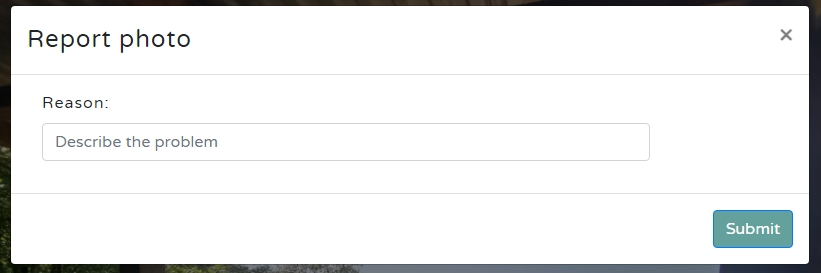
A Click on the white “speak bubble” gives a popup window, where you may enter a comment on why you want to report this image for further debate.
A red “speak bubble” indicates you made a remark.
If the camera symbol is GREEN there is EXIF data for you to examine. Click to see. If symbol is WHITE, there are no EXIF data
Click on the white X returns you to the individual category overview page.
Entering a comment
A Click on the white speak bubble brings up this popup window, where you may inter your comments.
Once you have written a comment – click Submit. Speak bubble becomes red. You may return and edit your comment throughout the assigned Validation period.
Your input on validation Your remarks on images will be visible for the Head Judge to see and evaluate. The Head Judge can see both your remarks and that they were made by you. The Head Judge can also see your progress in evaluating each category.
Validation Meeting Depending on the procedure your competition organisers have selected; a Validation Committee meeting may or may not be held. Based on all Validators(staff) comments a decision/conclusion can be made.
Does image comply with the rules & category description of the relevant competition? Images can be marked as “Approved” for the competition.
Is more information needed to decide? In this case more information can be requested from submitter via Head Judge’s interface indicating info needed.
In case the image is seen to break the rules, a Disqualification can be made. Submitter can be informed from interface including a reason to why.
Need to run a photo competition in your country, your club or amongst friends? Feel free to contact us! We can assist you, not only with the competition but also training for judges.

 Validator (Staff) Overview
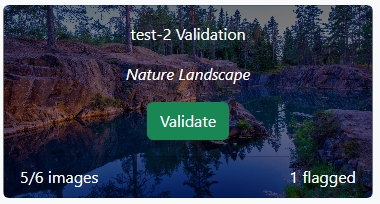 The Overview page will give you several kinds of information.

 Viewed with remark made

 The arrows take you to previous/next image
 A Click on the white “speak bubble” gives