Edited Oct 15th, 2025
Submission of images
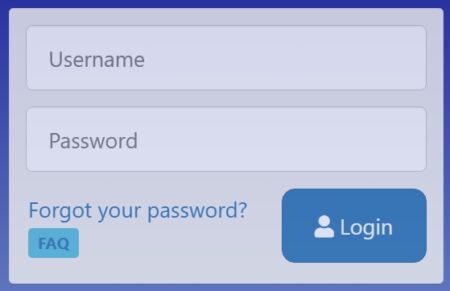
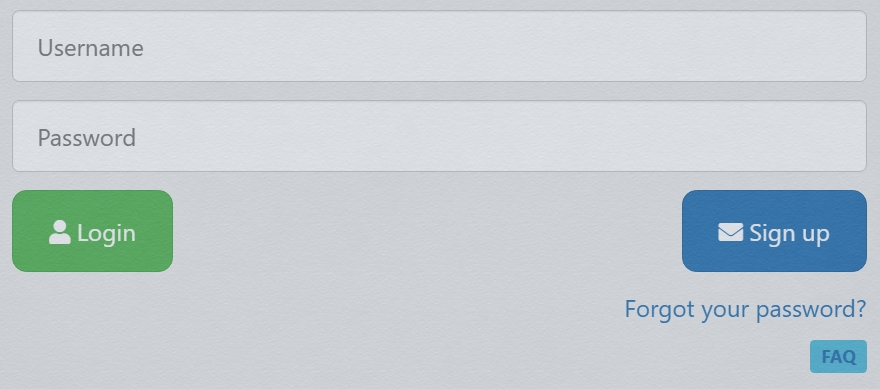 Go to: https://photo-competition.software/ and select relevant competition. You will then get a login window like:
- First time: please use ”Sign up” to the right
- Following: Enter your ”Username” & ”Password”.
- If you forgot your Password, please use ”Forgot your password?” Note that there is a FAQ available below “Forgot your password?”
Sign Up

 Enter a Username & e-mail.
The system will send you an email including a temporary Password. You can change your Password on your Profile page when logged in.
On the screen you get a confirmation
for signing up.
 You will receive an e-mail verification for your ”Username”
The mail includes your temporary Password – and a button you must click to confirm your email address
Then click login

User interface
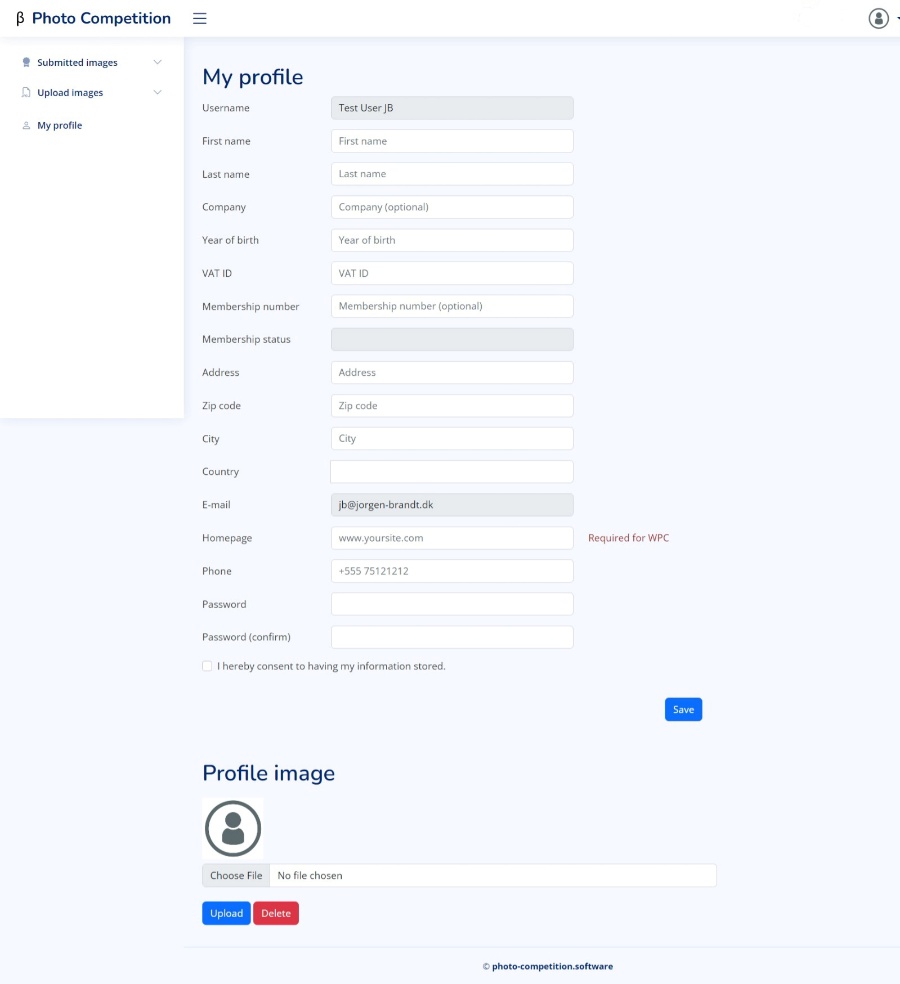
 Note: Presenting interface in ENGLISH, but your interface may be in another language
Top right/Bell – a welcome message and reminder to fill in the “My Profile” page”
Photo Competition:
Titel of the Competition you enter.
Fill in the complete “My Profile” incl. all required fields, incl membership information if you are a member of association organizing the competition.
Payments are typically made in the software when submitting images for a competition. Membership may or may not give you a special price. Be sure to use updated information. We recommend using the same email and phone as your association know you by, as you may not receive correct members discount entering any other info here.
You may optionally upload a “Profile Image”.
Click “Save”
Password
If you would like to update your password, enter the new password in the lower section of “My Profile” remembering to click “Save”
- For ease of contact – check your entered information
- Please also check spelling of your name, as we use the exact spelling from here on any certificates you may receive in the Competition.
Images in the Competition
Participation in the competition takes place in 2 or 3 stages:
- Upload of images
- Submission of images into relevant categories incl. payment of fee
- Submission of Prints for in a Print competition (if relevant)
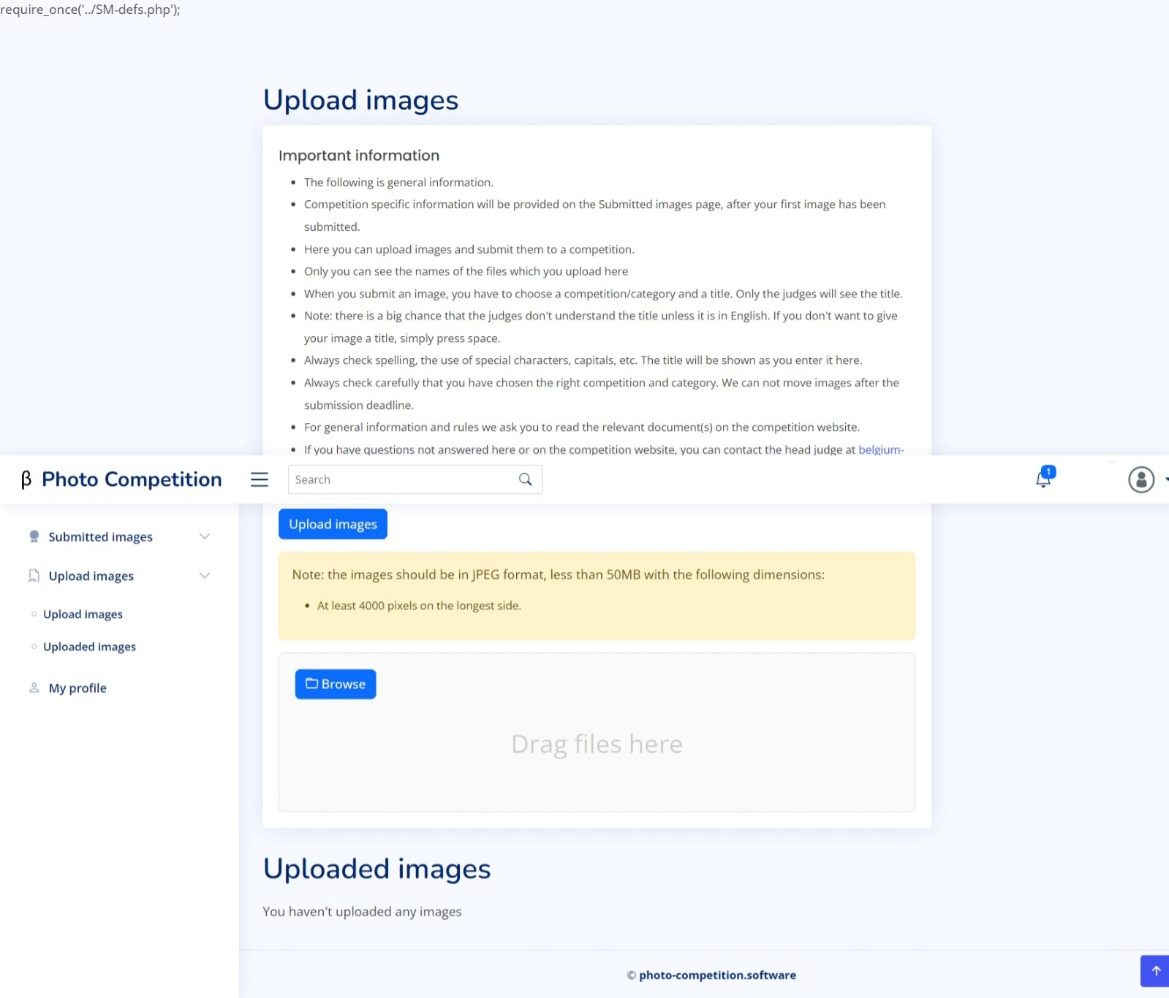
1. Upload of images
Read the “Important information” and click ”Upload of images”
The software is built to handle both online and offline (print) competitions. Offline images are used as references. Therefore, you must always upload images. Images are also used f ex labels attached the prints, if relevant, and may be used on certificates.
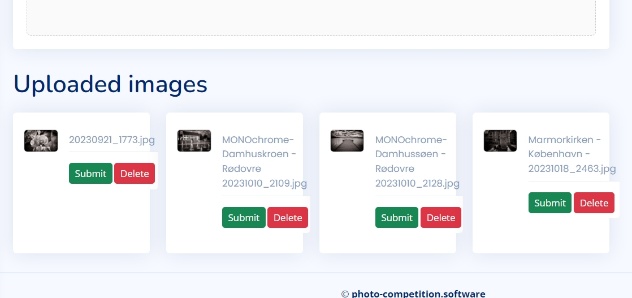
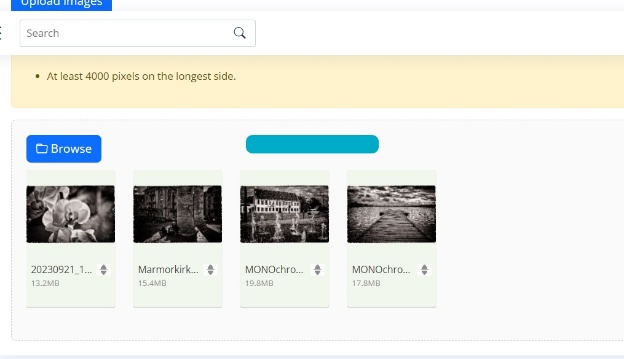 When you click ”Upload of images”
the interface for uploads appears.
Click ” Browse” to select images in your fil-browser or “drag and drop” them onto the grey area.
Upload starts – and images are checked against permitted color profile(s) and for images size in pixels.
After upload the images can be seen in “Uploaded images”
Click Submit to enter a competition or Delete to remove the image
2. Submit Images
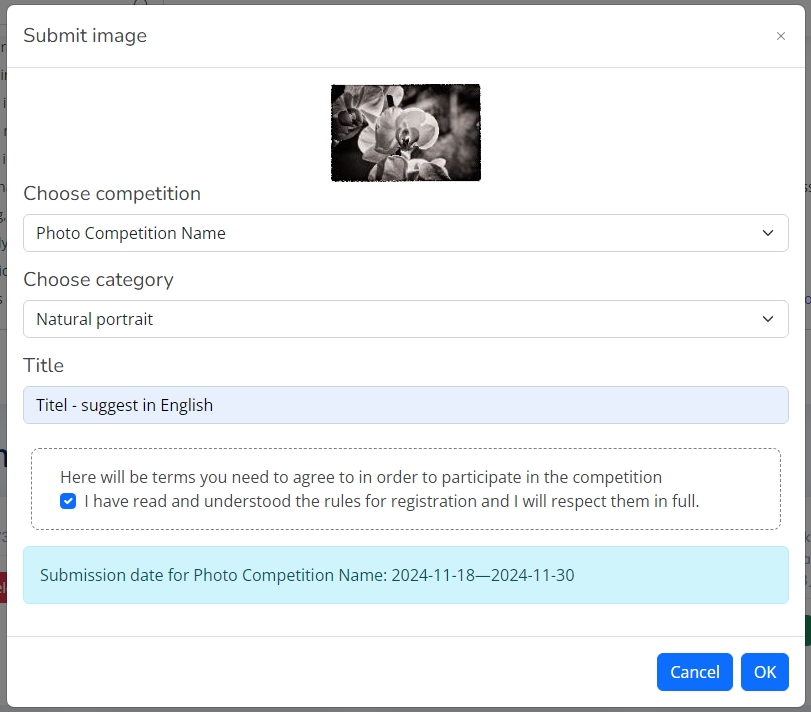
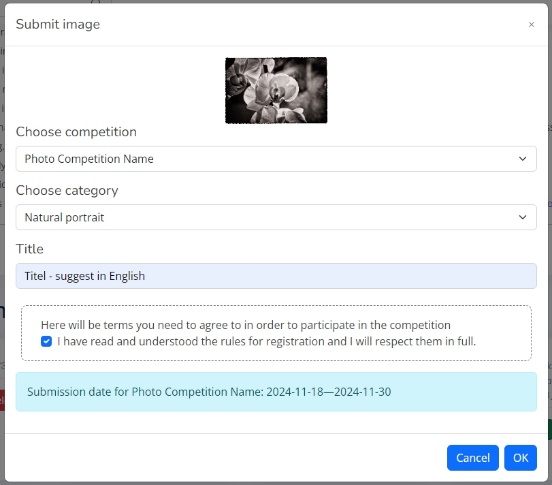
A click on Submit brings up a pop-up window:
- Choose competition
- Choose category
- Enter image Titel
(We recommend titles in English for competitions with international judges, as judges may not speak your native language). If you do not want to enter a title pres ”Spacebar”.  Note: Deadline mentioned is for digital submissions and may be different for submitting Prints.
Click OK to submit in chosen category.
Note: Deadline mentioned is for digital submissions and may be different for submitting Prints.
Click OK to submit in chosen category.
Image(s) is then moved to “Submitted images”
 You can choose to upload and submit more images, if you like.
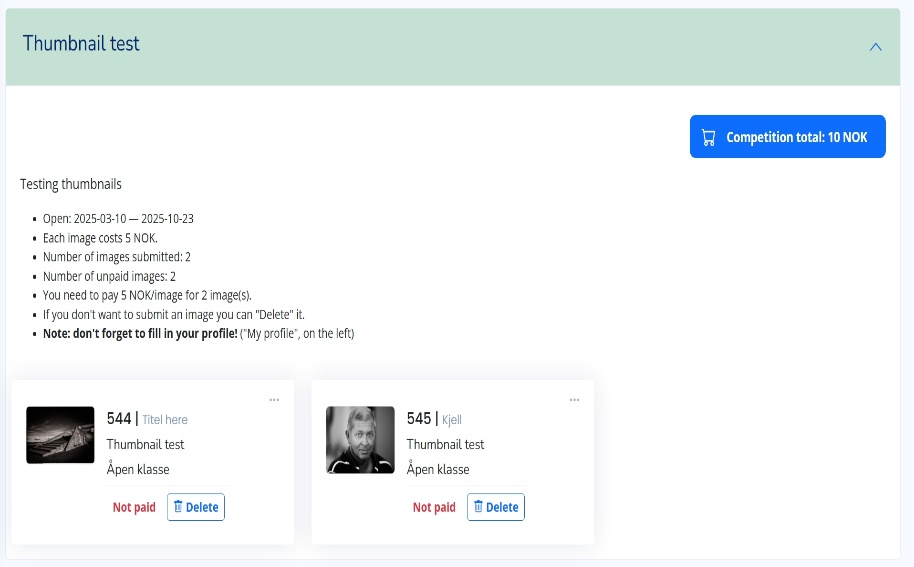
Photo Competition Name (here Thumbnail Test) will be the name of the Competition(edition) you submitted images to.
Entering different competitions(editions) over time will display those competition submissions here.
In the box will be a description of the competition entered. This description can/will vary among competitions(editions) entered.
Please note:
Shopping charts are displayed PER COMPETITION to avoid conflicts
XX / Titel display your images unique ID number and the title your entered.
If you changed your mind for a submission, you may delete it again here.
This can be done until Payment is done or deadline for the submission is reached.
Not Paid Based on competition cost the required payment is calculated. Information of price(s) will be displayed in the blue box.
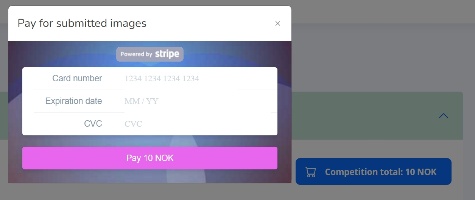
In this sample ONE image is 10 NOK – also seen on Shopping Cart top right og that competition information box. Click on Shopping Cart to pay by Credit Card.
Enter your Credit Card information. We use secure payments via Stripe.

In Submitted image’s view a click on … gives access to:
Highres original file download
A ”Label”” to attach on back of print submissions (when relevant)
After Award presentation download of Certificates etc. can be found here.
Download via …

When you click on the item you would like to download the above pop-up window pops up.
Click OK and go to the new tab and save the image/certificate/label to your computer