VALIDATION Process
for users
Edited Aug 21st, 2025
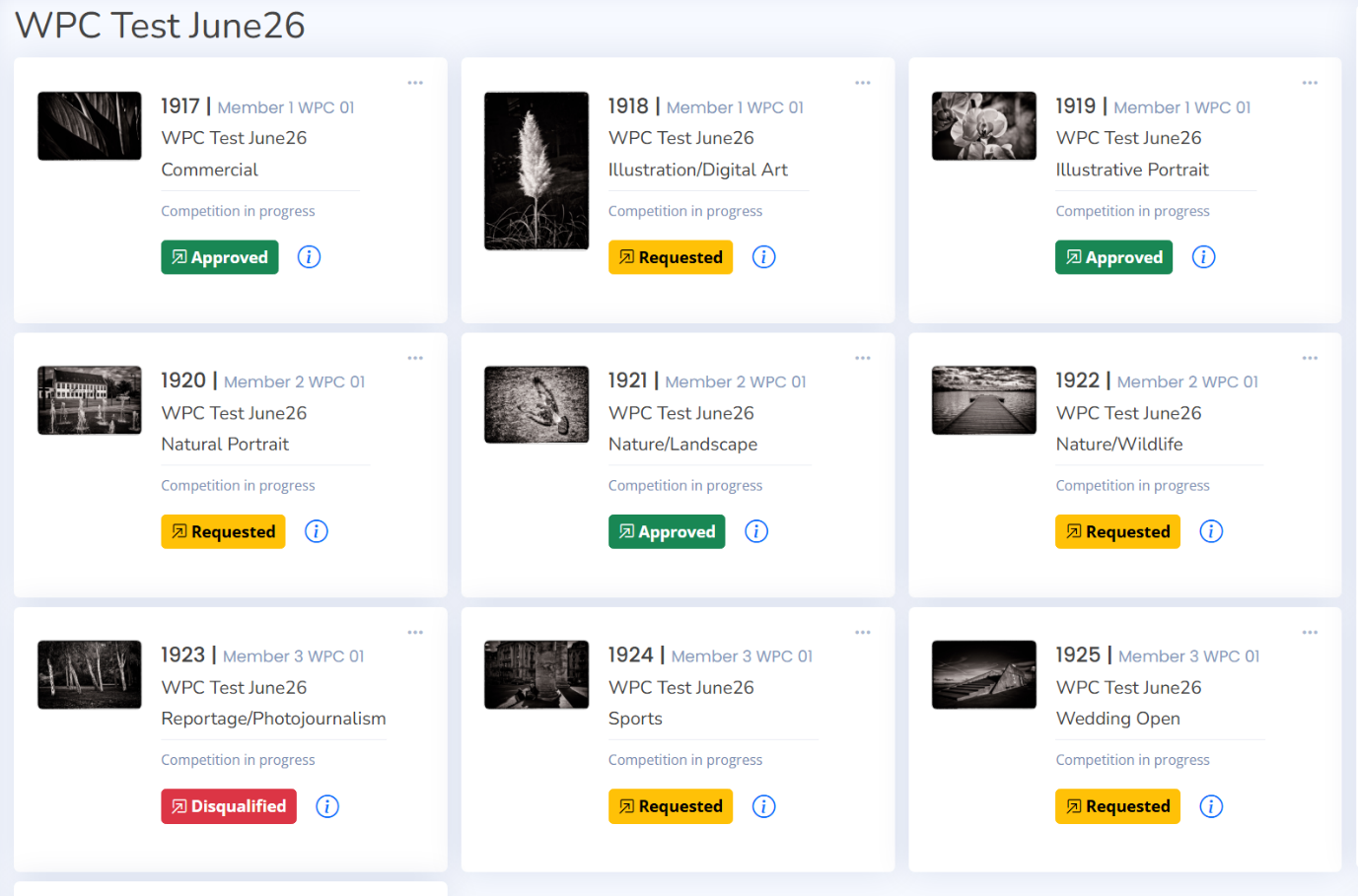 Go to: https://photo-competition.software/ Select Competition and
Login with you Username and Password
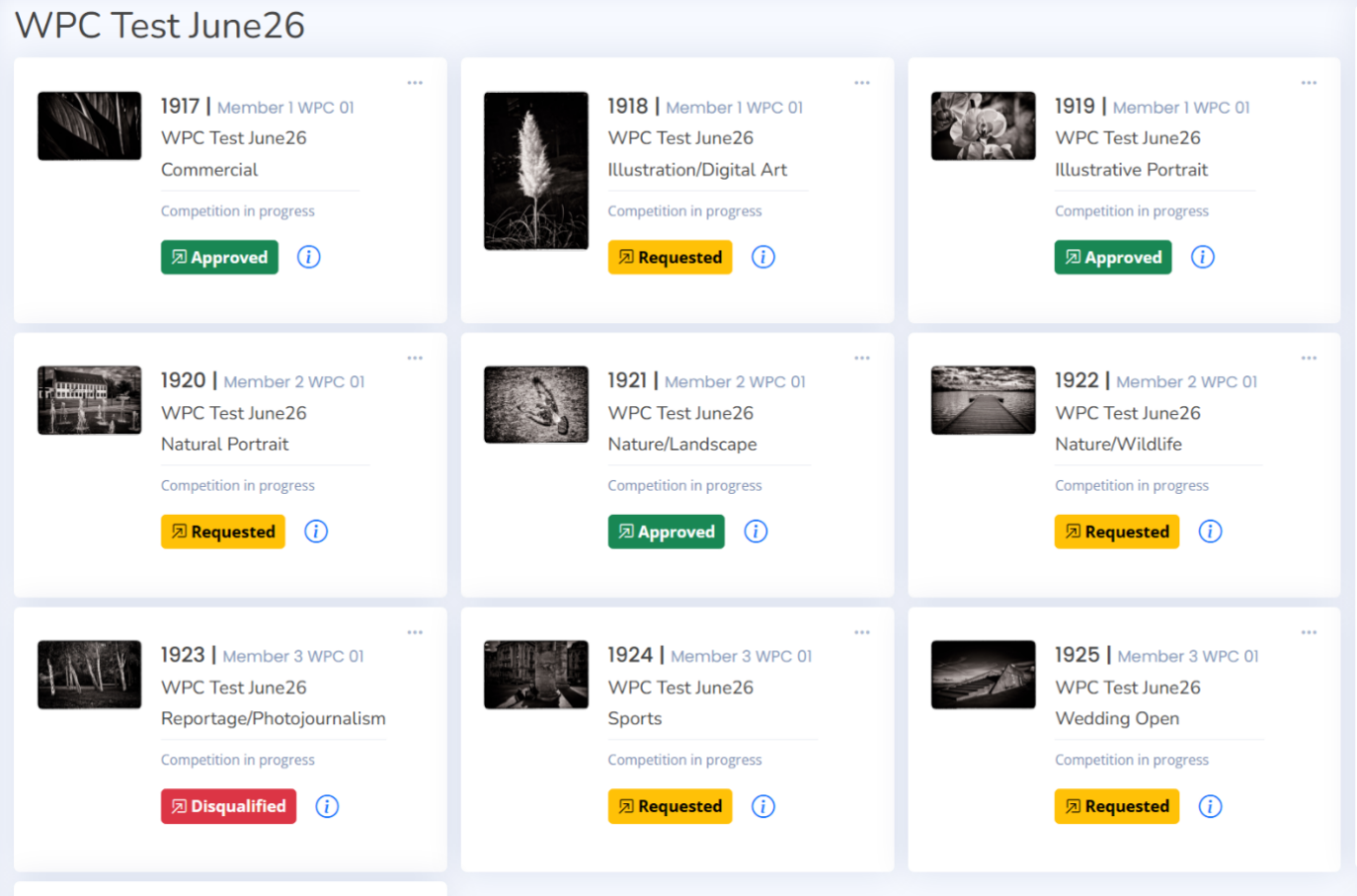
Under “Submissions” in left menu, choose your relevant competition.
Information in this view:
- Unique image number
- Team Member name (only for WPC)
- Competition image is submitted for
- Category
- Status of competition (like here “Competition in progress) – and –
Status indication - A Light or Dark Blue, Green, Orange, Red STATUS indicator will become visible if the relevant image goes to active Validation, a process we may do to verify that the images follow the rules of the competition.
- The Status indicator ONLY becomes visible when a validation is in progress. You will also be notified by email.
- To engage in the Validation process – click the status indicator.
- All TOP 15 images – and Best of Nation Images will be requested for a Validation Process. (only for WPC)
- Images may be selected for Validation before judging starts
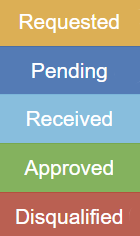
Requested indicates you have been asked to submit information. This is the initial state.
Pending indicates the Head Judge has received information but not looked at it yet. Status after you submit information/files.
Received indicates information is received by Head Judge but information has not been evaluated.
Approved indicates information/files has been reviewed and the image is approved to be in the competition
Disqualified indicates that the image have been disqualified after information/images have been reviewed
Providing information and having dialogue
The process is the same for Pre-Validations and Final Validations.
Click on the STATUS Indicator to enter Validation dialogue area.
The dialogue area consists of 3 TABS + username
 Thread where you can read messages from the Head Judge and give your response / provide written information.
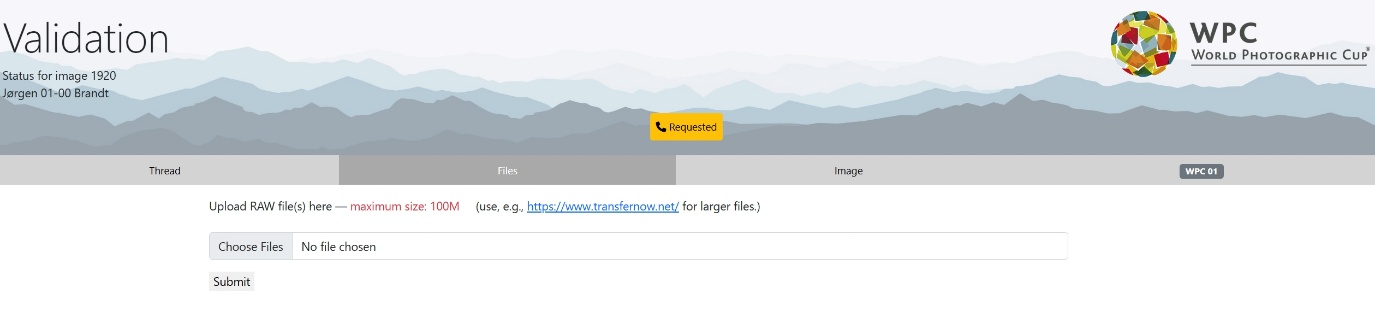
Files where you can upload supporting files (RAW/JPG/PDF/PSD/PSB etc.).
Image where you can see the image submitted to the competition.
Username is seen all the way to the right.
Thread
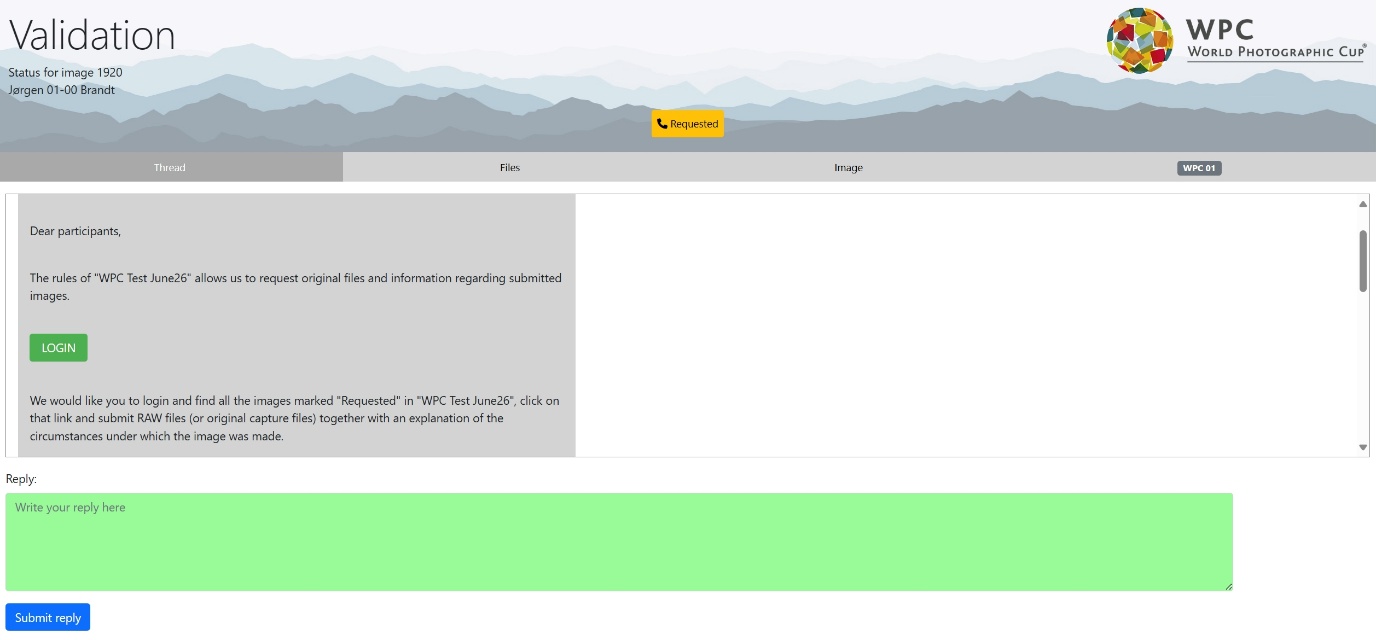 Read the initial message and respond with information and/or files as requested.
Before/After writing a message in Threads – remember to change the validation status to the new relevant status. If you want to do a Disqualification – this MUST be done in the overview list.
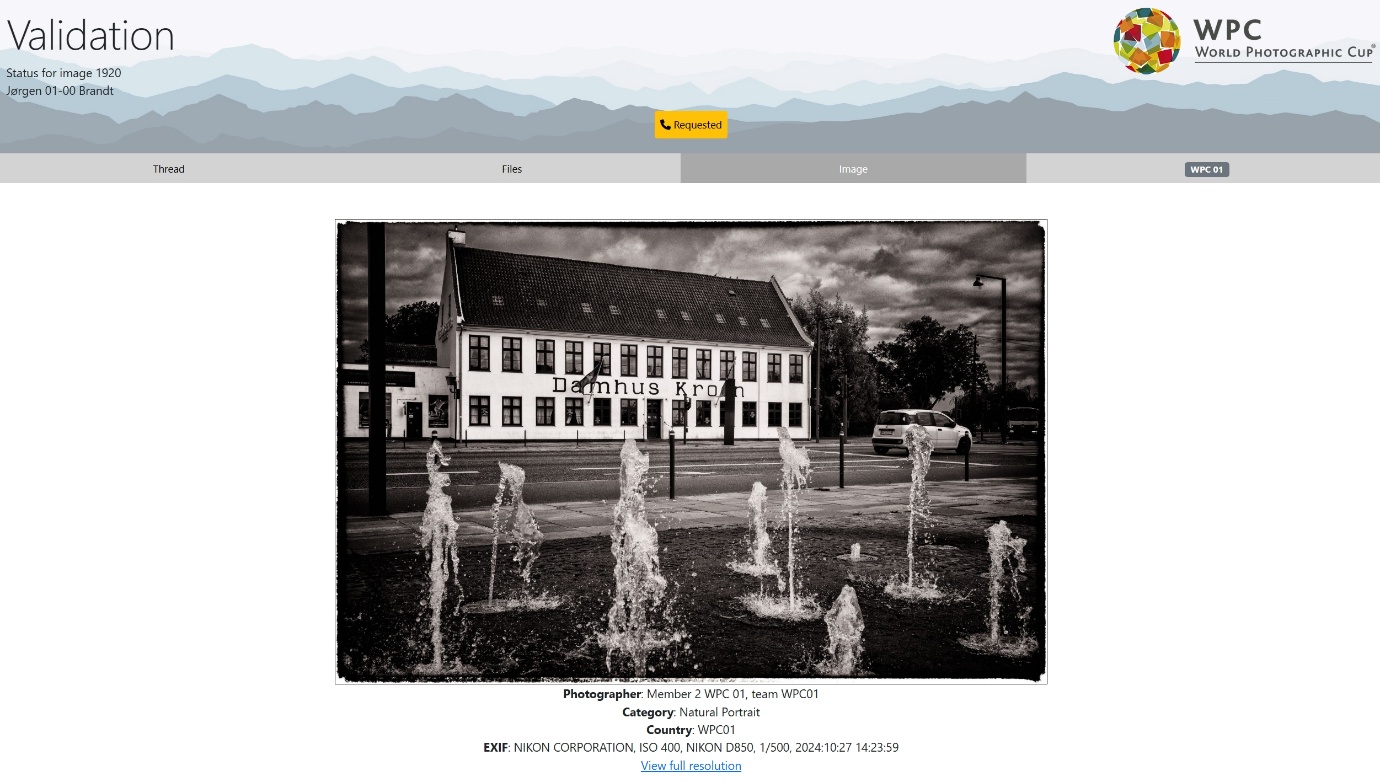 Image
Image
The Submitted image for the competition including relevant information and the possibility to see a full resolution version (click link) or hover mouse over image for a relevant detail of image.
 Files
Files
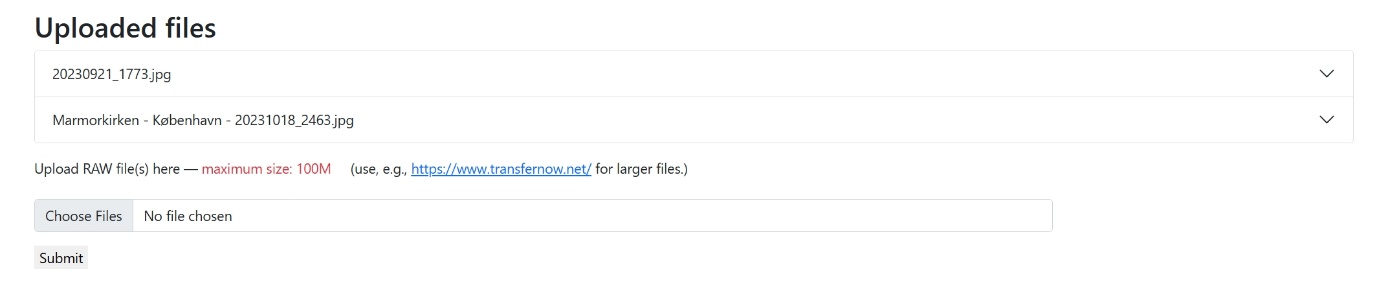
Uploaded files of maximum 100 MB each. You can also upload by clicking “Choose Files” and “Submit”.
Once files are Uploaded by a submitting Photographer / WPC Team Captain you will see a list of the received files and the Status will change to Pending
A click on the down arrow by a filename will expand the view to see uploaded file and information regarding this upload incl a thumbnail preview. Click on filename to see image.
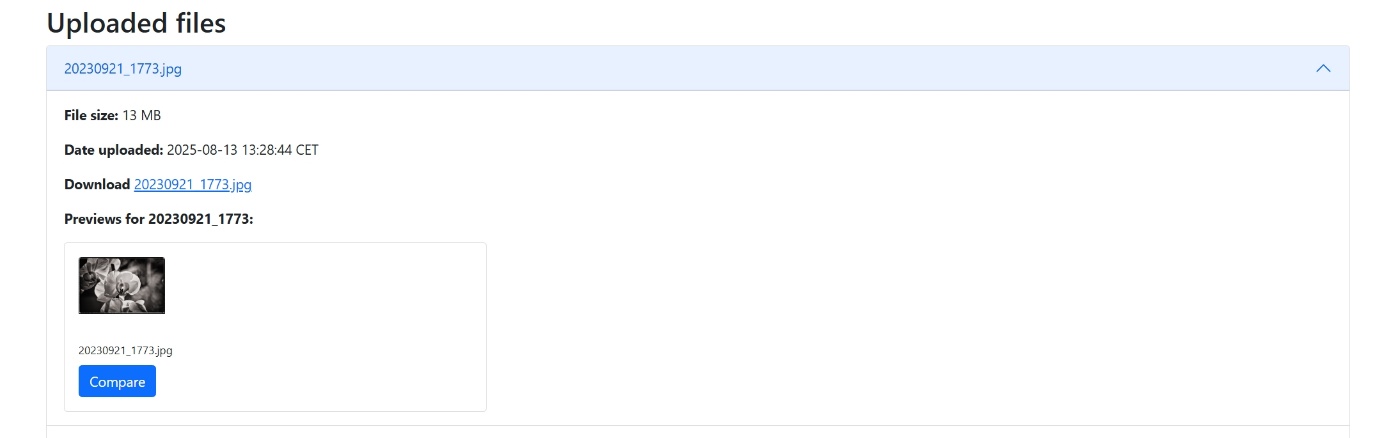
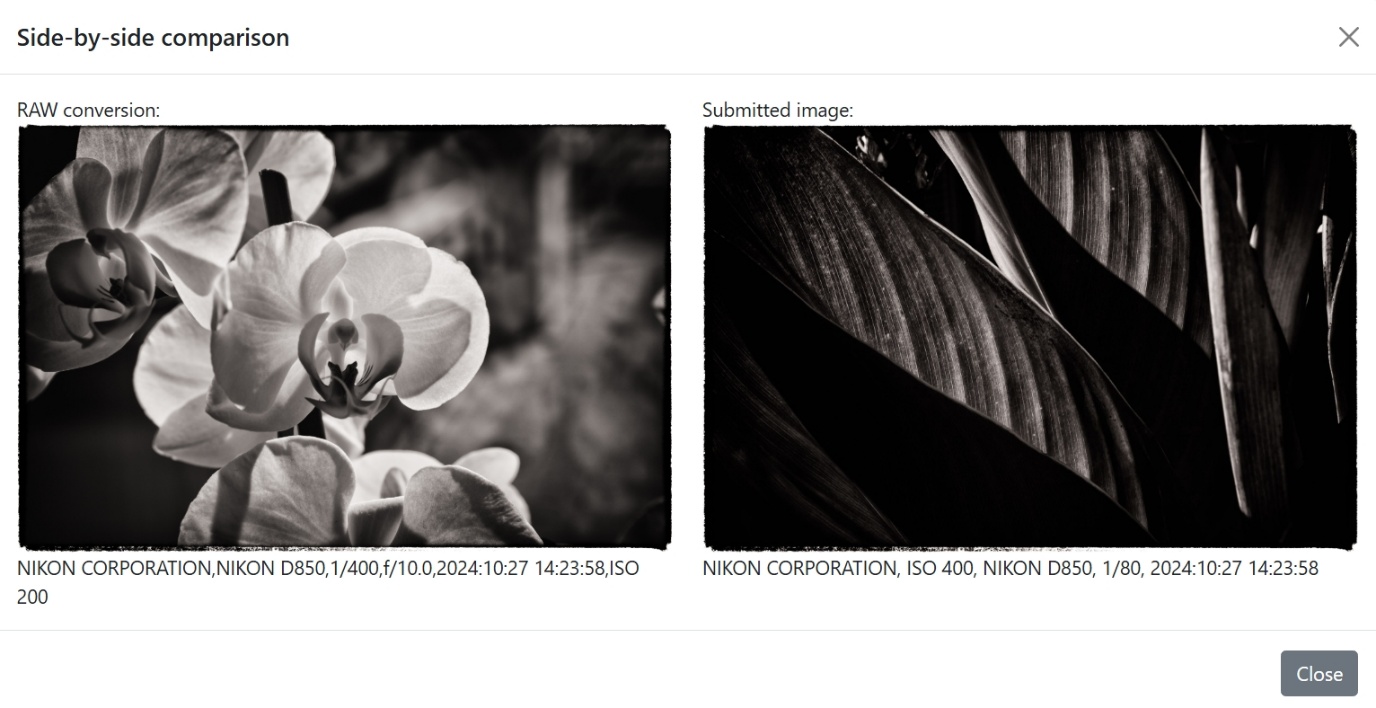 Click Compare if you would like to compare this uploaded file to the submitted competition image.
In this Side-by-side-comparison you see the 2 images, EXIF information if provided and can zoom in on details in either image. Zoom is done by placing the mouse over image and move as you prefer.
Note it is essential that you provide all relevant information via the
Validation interface, as that is the only way you can ensure that the
information is considered when a submission is reviewed. We will not answer messages regarding validation via email, WhatsApp, Messenger etc
In this PDF instruction we have used illustrations from a WPC interface, but the information is relevant for ALL Validations for Teams or Individual Photographers.