Edited Nov. 21st, 2024
Login
Go to: https://photo-competition.software/ and select relevant competition.
Login with your Judge Account – note that your selected “user + password combination” brings you to the relevant user interface in case you have more user accounts.
If you have forgotten your “user + password combination” – please refer to the Log In FAQ
 Judge Overview
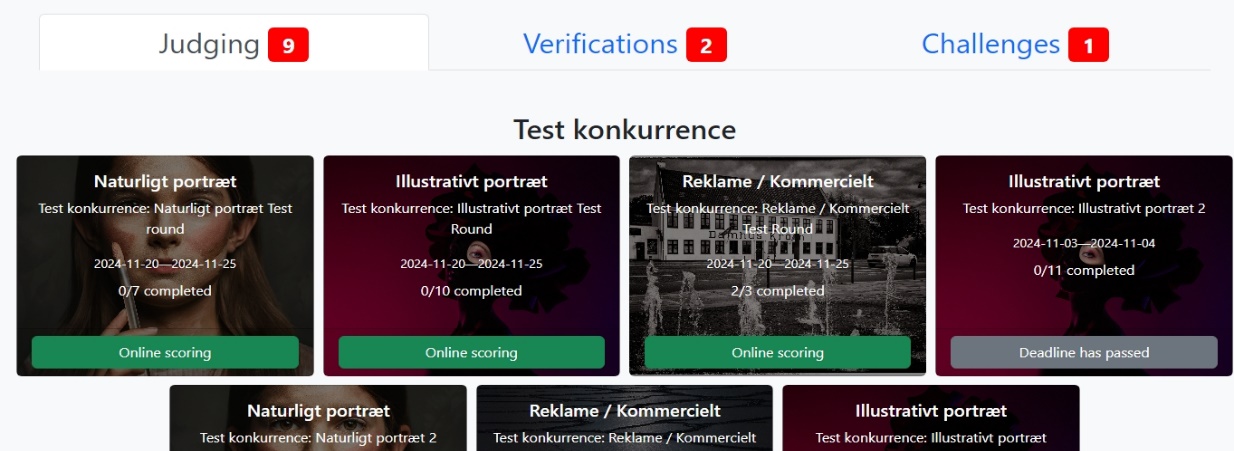
Once logged you will see an overview of the categories you are asked to judge.
There are 3 tabs
- Judging
– images to judge, number of categories in red
- Verifications (optional – not all competitions use this feature)
– images where Head Judge ask you to verify your score, numbers in red - Challenges (optional – not all competitions use this feature)
– images where a Challenge has been issued, numbers in red
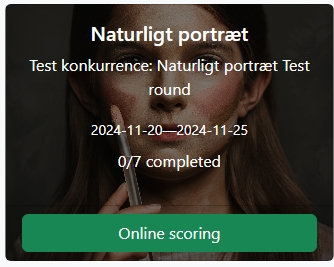 The Overview page will give you several kinds of information.
- Per Category you will see
- Category
- Competition Name
- Online scoring if images need to be viewed
- Online scoring if all images are viewed
- Deadline has passed after judging ends
- Dates is period for judging
- x/y images to let you know progress
On top of the Overview page can be a possible scroll down menu with information for judges. (optional – not all competitions use this)
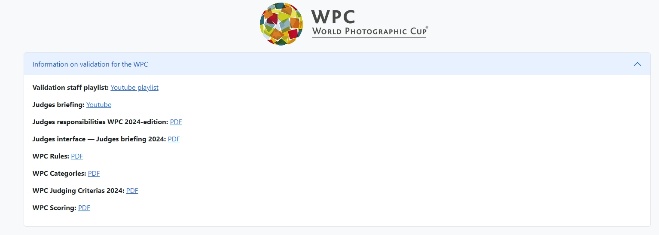 Click “Information…” and scroll down for more information Expanded a list of relevant PDF or Video files
(sample here is from WPC, note content varies with the individual competitions)

Click on Online scoring in a Category to start judging
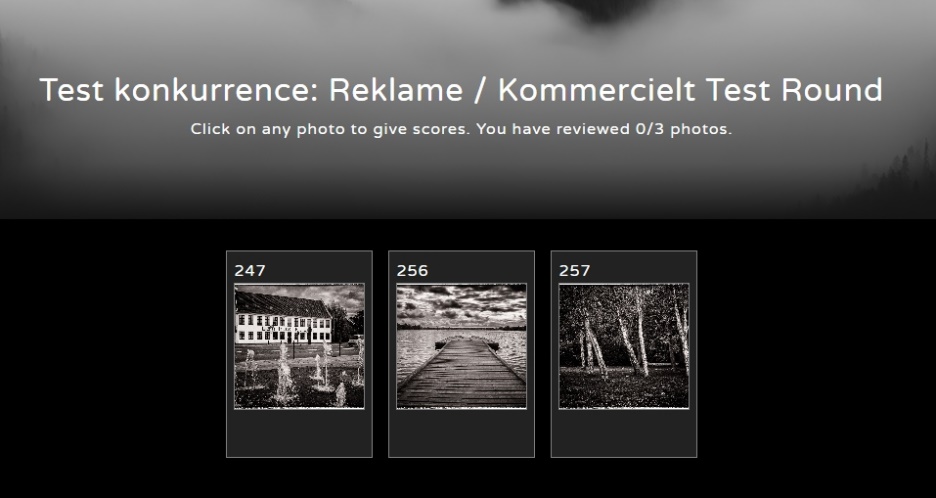 Category View
Click on a category to view get an overview of that category.
Initially each image will NOT have any marks, you will only see image number (xxx) and a thumbnail of the image.
Judging your score will appear below the thumbnail or a “—” if you do not want to score the image.
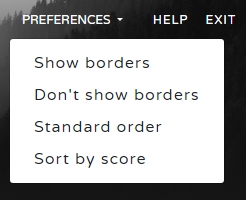
 In the top right corner, you have access to
- Preferences Should images have borders and how do you want them sorted
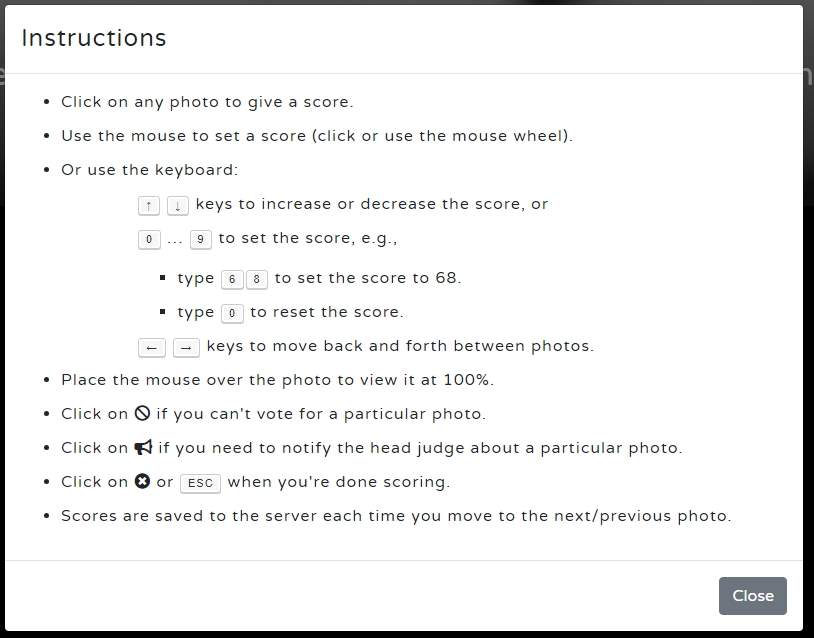
- Help Shows instructions on judging interface
- Exit Brings you back to single Category Overview
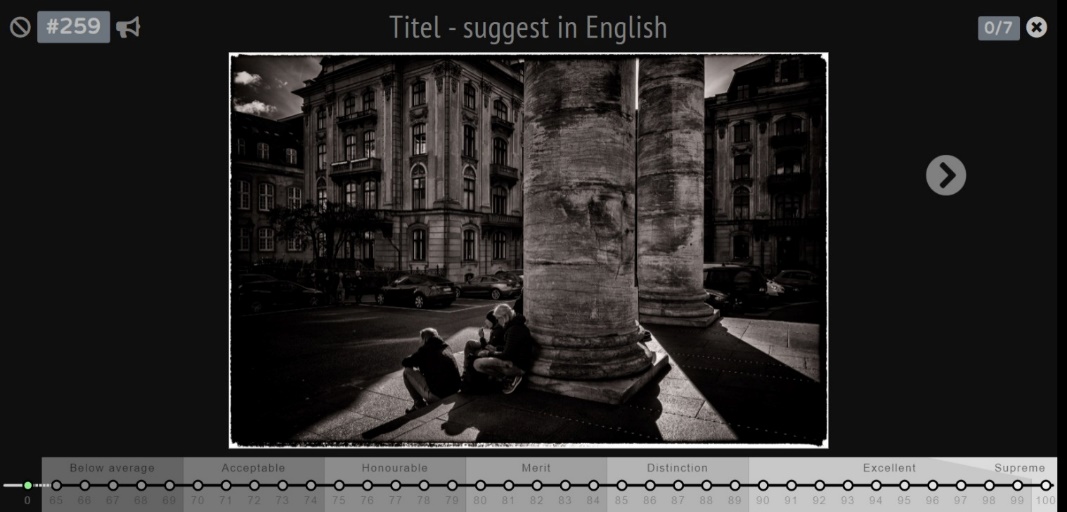 Judging an Image
Click on the image you would like to judge.
Overview: the image view window displays, beside the image:
- x You score the image x You do not score the image
- Unique image no / ID
- V Report to Head Judge / Competition Chair
- Titel: we have suggested participants to use English titles
- x/y indicating you are viewing image x of y images
- V Return to single Category view. You may also use Esc-key
- ß and à to move to previous or next image, you may also use “left” or “right” arrow keys on your keyboard
(see below for more on not scoring an image and reporting an image) 
Hover mouse over image to see in 100%, i.e. the submitted original file.
 Scoring an image
Below the image is a scale for scoring images.
The scoring scale will be divided into intervals, which will vary per competition, as different competitions use the 100 scale differently.
You will see intervals with a wording definition defined by the individual competition.
Some of the intervals may, in some competitions, equal Diplomas issued for images reaching a certain level, i.e. Honourable Mention, Merit….
Note that different competitions define the scale differently, so it is always a good idea to study the scale/definitions before applying a score.
The scale may – or may not – have a minimum possible score. This will be individual from competition to competition.
How to enter a score
- Enter your score by the numeric keys on your keyboard, or
- Use mouse wheel to “dial in” your score, or
- Click on the score you would like to give
Scores are automatically saved when moving to next image. During the judging period you may return anytime to update your score.
 Do not score an image
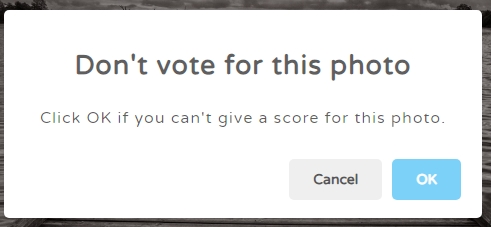
In order not to score an image – for reasons the competition organizers have given you – you should click x. A popup window appears, where you click OK.
The symbol then becomes x indicating that you have selected not to score the image. In the individual category view the image will be marked with an “—”
You can come back and click x if you change your mind. Symbol then changes back to x.
 Report an image
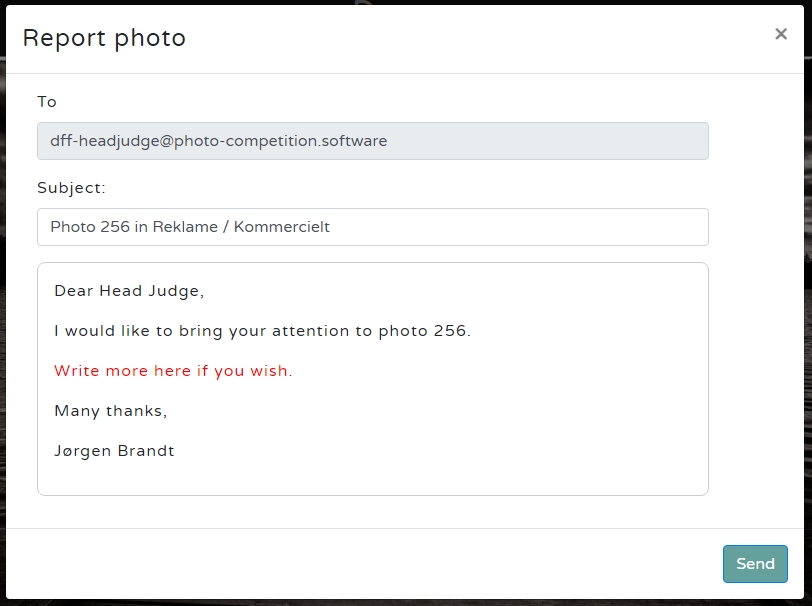
To report an image to Head Judge / Competition Chair – click on V to send an email report.
You can change the red text into the message you would like to send.
Image no & category will be pre-filled indicating image in question.
Your name will also be inserted from your judge profile
 Then click Send
A new popup window will indicate emails has been send
Return to single category view
Click V to return to single Category view. You may also use Esc-key