Objective The Validation of submissions is intended for use by an optional Validation Team/Committee in a competition.
The Head Judge / Administrator handle all submitted images in a competition, coordinate the input from Staff/Validators, change status of a submission and interact with a submitting Photographer (Team Captain in WPC)
The Head Judge / Administrator can:
Assign Validators/Staff to inspect a specific competition for Inspection by one or more Validators/Staff
See an overview of reported images from Validators/Staff incl their comments
Handle Status of images in the Competition
Interact with submitting Photographer (in WPC Team Captain)
Login with your Account (Office or Admin as applicable) – note that your selected “user + password combination” brings you to the relevant user interface in case you have more user accounts.
If you have forgotten your “user + password combination” – please refer to the Log In FAQ
For complete information on the Validation system please also consult the PDF instructions for “Validators/Staff” and “Photographers/WPC Team Captains”. This PDF focus on the interface and process for a Head Judge function.
When logged in go to “Validations” tab
Validation Events
There are in principle 2 kinds of Validation Events:
Pre-Validation Used before judging starts, possibly to verify categories of submitted images, but interface gives access to all the Validation interfaces.
One/more Validators/Staff evaluate images and either has a “remark” for images to be talked about – or has no remarks.
Head Judge/Office can see which images is marked with a comment and arrange for those to be reviewed in the process decided for the specific competition.
This could be an online meeting where Head Judge share screen for all to see – or any other by the individual competition decided process.
Final Validation Typical used after a judging is complete and you want to deeper Validate the top images.
Head Judge/Office can see which images has which Status in the Validation Process and enter a dialogue regarding this (see below).
Each competition set their own procedure for this internal part of the Validation process.
This could be an online meeting where Head Judge share screen for all to see – or any other by the individual competition decided process.
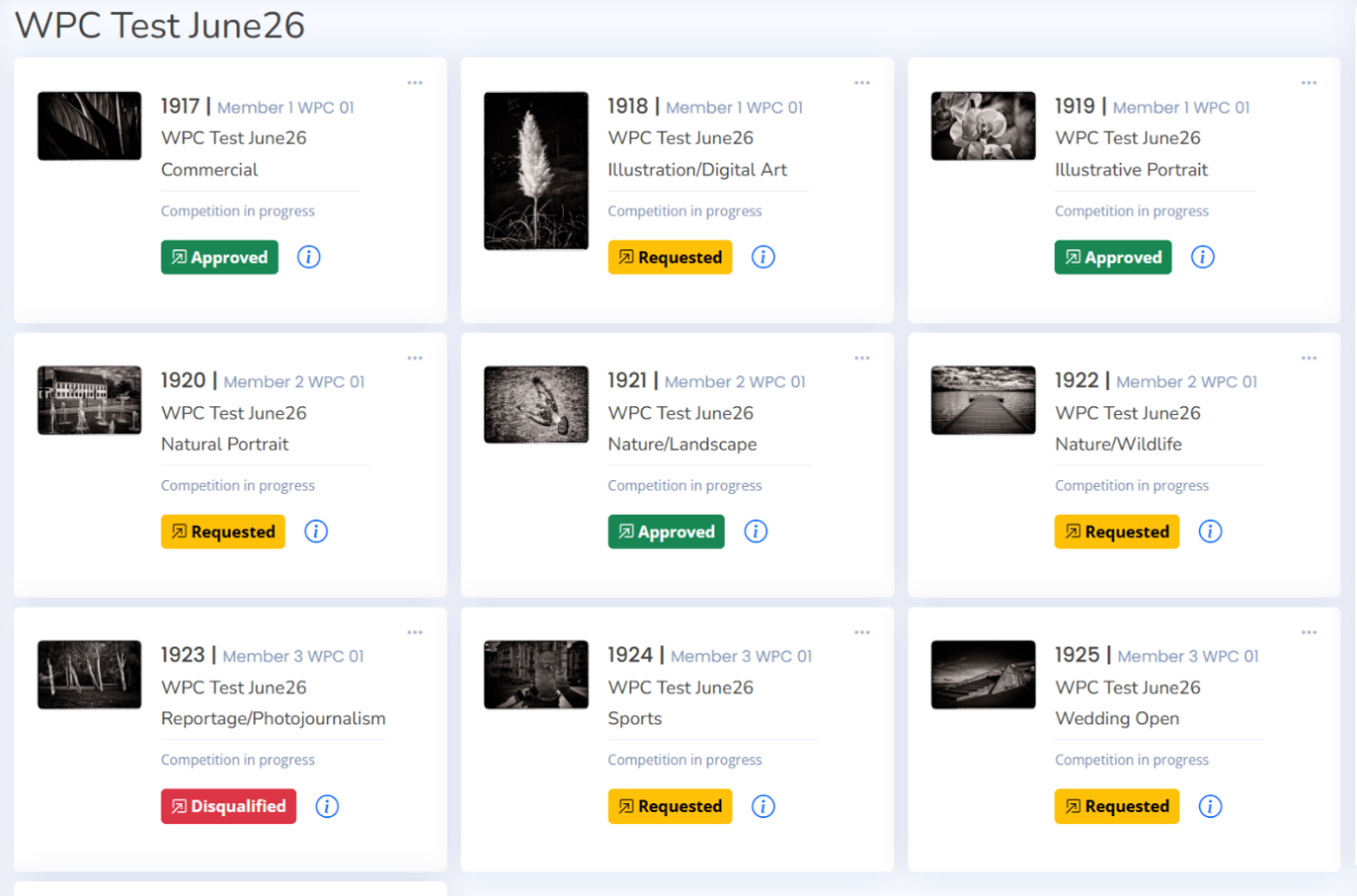
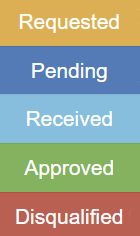
Overview of Validation Status Each image in the Validation process will have a “status” from the below list. Initial status will be “Requested” as in we request information/files from submitting photographer / WPC Team Captain
Requested indicates you have been asked to submit information. This is the initial state.
Pending indicates the Head Judge has received information but not looked at it yet. Status after you submit information/files.
Received indicates information is received by Head Judge but information has not been evaluated.
Approved indicates information/files has been reviewed and the image is approved to be in the competition
Disqualified indicates that the image have been disqualified after information/images have been reviewed
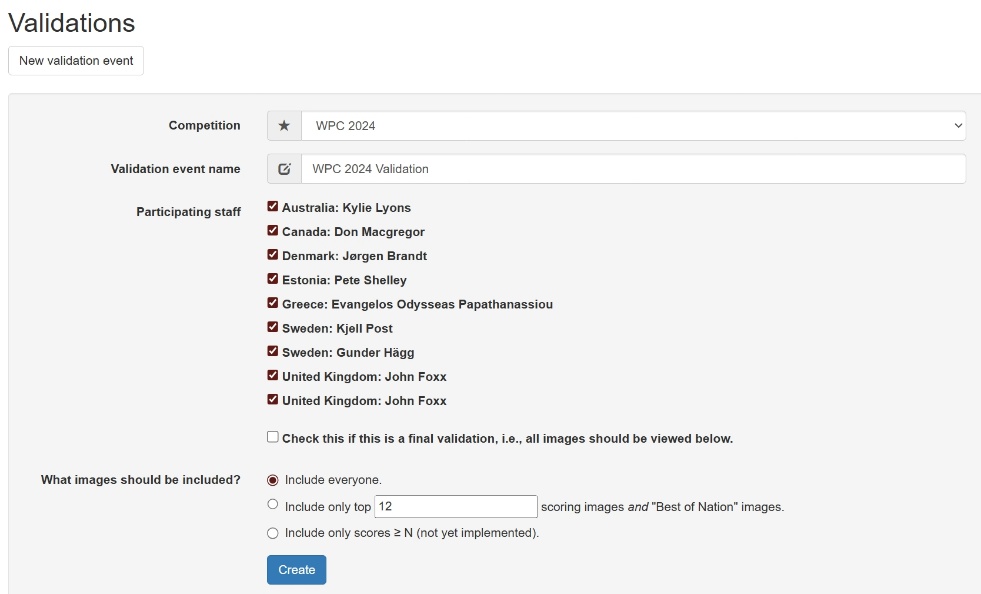
Create Validation Events
Click “New Validation Event” and in the dialoqe window enter:
Competition: Relevant competition
Validation Event Name: Enter what kind of Validation you intend (Pre Validation or Final Validation for ….)
Participating Staff (for a Validation Event where one or more Validators/Staff evaluate images and mark/make comments on relevant images) You select which Validators/Staff you would like to include.
Validators/Staff may any time log in to see images on dedicated interface and make a comment for Head Judge/Admin to see.
Only Head Judge/Admin can communicate with a Photographer /Team Captain directly.
Images included?
Include everyone: That’s all submitted images in competition. Validators/Staff will see images sorted by submitted category
Include only Top XX images: (WPC also the Best of Nation Images would be included) Which top images you would like to examine in the Validation
Include Only Scores above YY scores Would select images with a score equal to higher than YY
When all setup – click “Create”
Validations
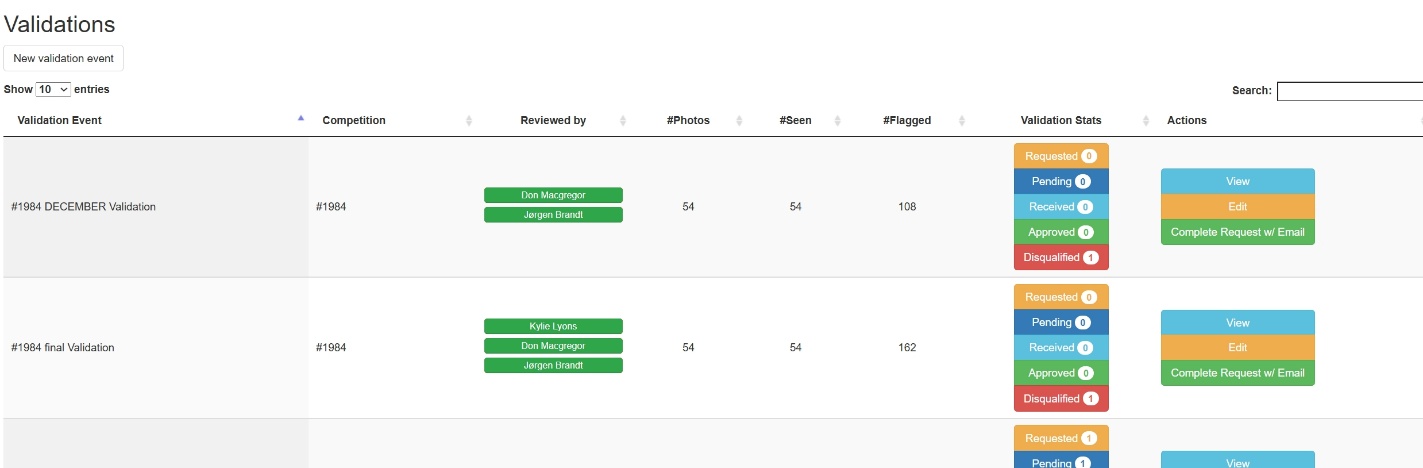
The Validation Tab gives on overview of all the existing Validation events. You can sort the different columns by clicking on the arrows – or you may use the “Search” function as fit you best.
Under “Reviewed by” you can see assigned Validators/Staff for a Validation Event. If a block with a Validator/Staff name is all GREEN, all images has been inspected. If all RED, no images have been inspected. Partly GREEN/RED indicate partly inspected.
You can also see how many images are at the different “Status” levels
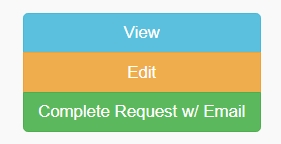
View: Go into the selected Validation Event to review/work on the Validation
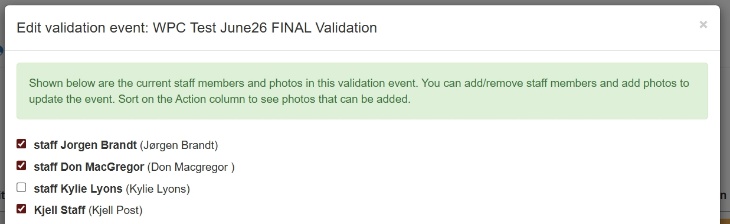
Edit: Add or remove Validators/Staff to Validation Event.
Add or remove individual images in the Validation Event. You can sort on the columns or use
Search to find relevant image. Sort on Action column to see added images.
Complete Request w/ Email: Send email to Submitting Photographer/WPC Team Captain (see below)
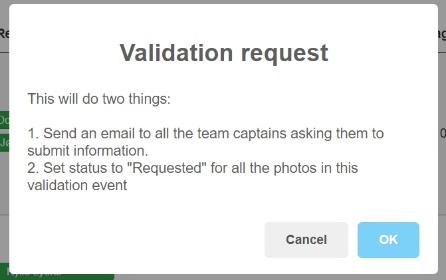
A click initiate process of requesting from all Participating Photographers / WPC Team Captains in the Validation Event
Illustration “Validation Request “ for both single image competitions and WPC.
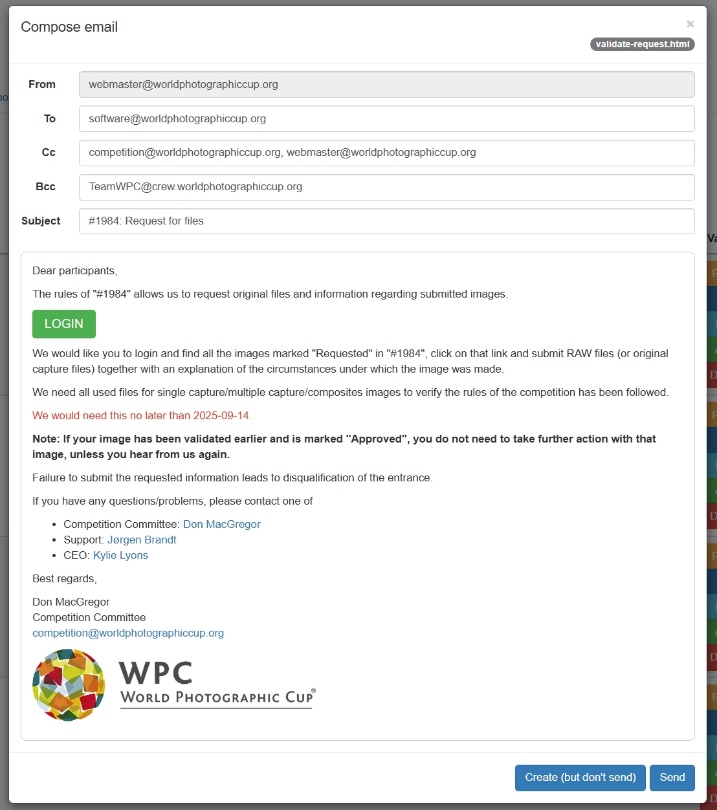
When you click OK – you will see a pre-made email for all. The content for the pre-made email is defined by the individual competitions, here illustrated with WPCs.
You can edit email in this window before sending.
Check f ex that DATE information is correct.
Email should inform of what information is requested and when.
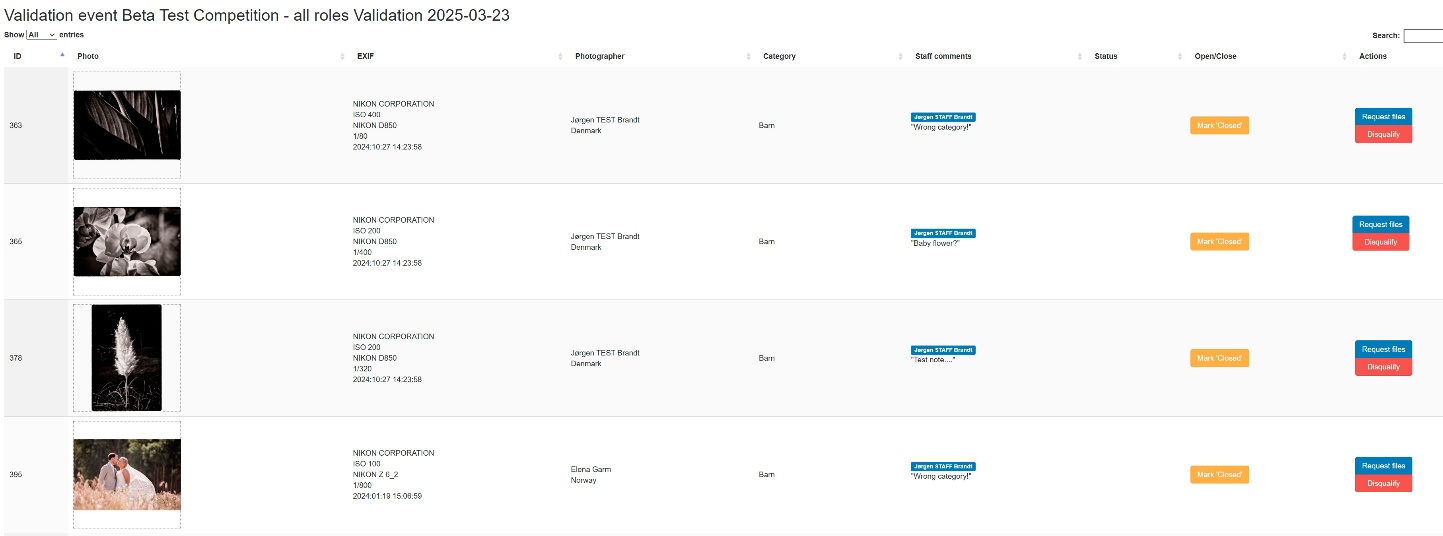
Dialoqe with a participating photographer / WPC Team Captain Click on View for relevant Validation Event to get to Overview of all images in that specific Validation Event
In this Overview you will see
EXIF data (if available),
Name of Submitting Photographer/WPC Team Captain,
Category image is submitted in,
Comments by Validators/Staff (if made)
You may here:
Mark as “Closed” when Validation for that image is complete (whatever the outcome is) and you want to easy see process is complete
Mark as “Open” if a “Closed” image needs to be re-evaluated
Request Files: on an individual image level, useful when a request is NOT to be send for all images in a validation like in a Pre-validation event
Disqualify A Disqualification of an image can be done here.
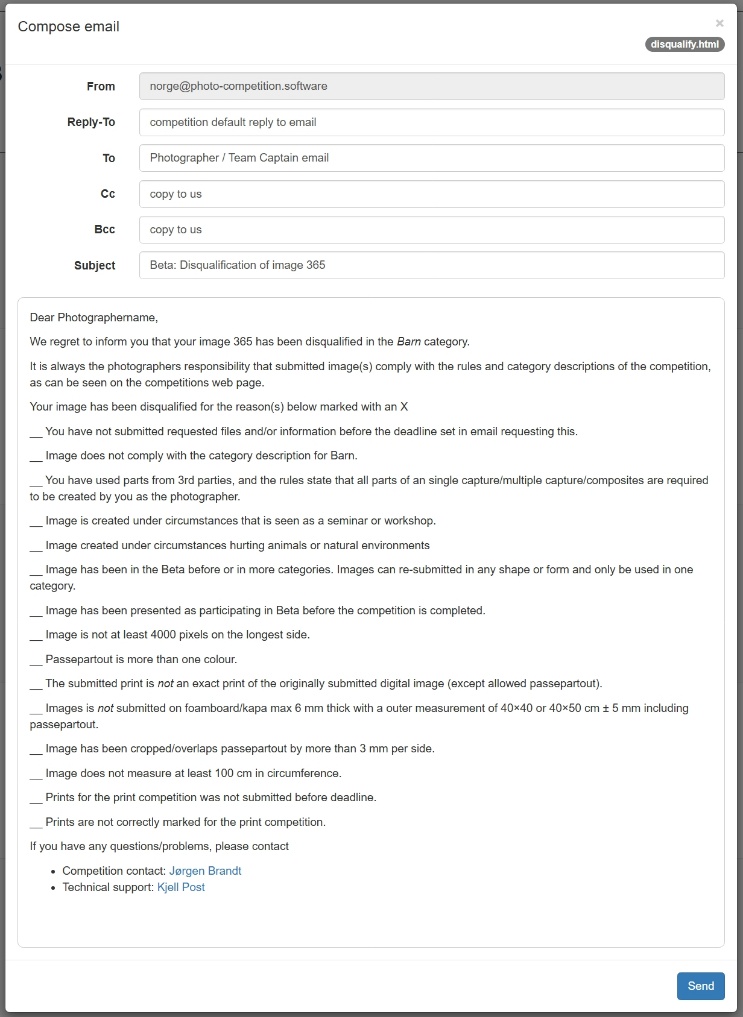
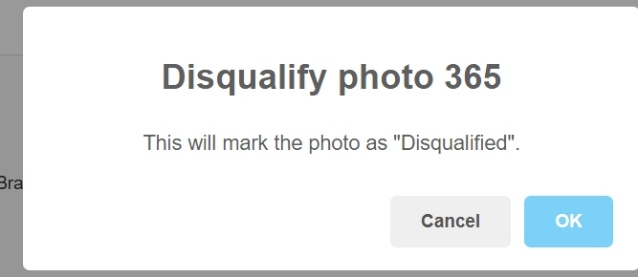
If you click “Disqualify” you will first be asked to confirm the decision. Click on OK will take you to a (per competition designed) pre-made email.
You can edit the email to indicate why an image is disqualified.
Getting information and having dialogue
The process is the same for Pre-Validations and Final Validations.
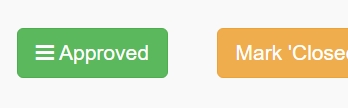
Click on the STATUS Indicator to enter Validation dialogue area.
In illustration “Approved”, but could be any of the Status’s we use and initial would be “Requested”
The dialogue area consists of 3 TABS + username
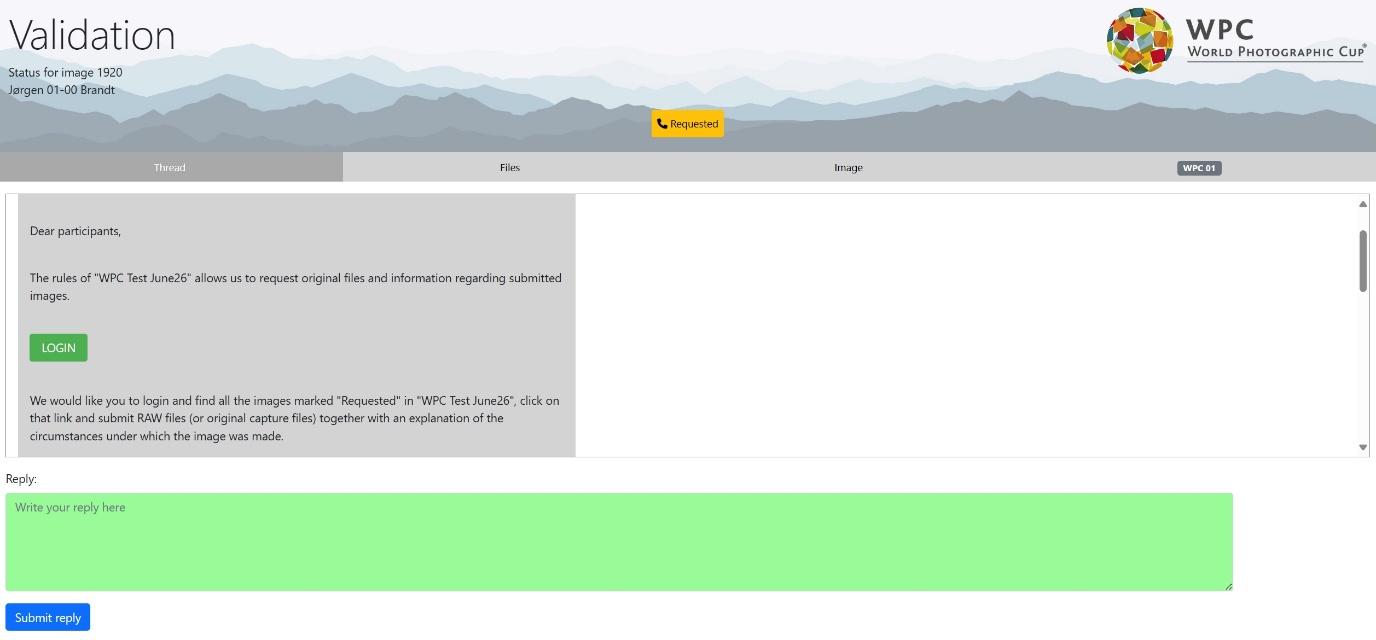
Thread where you can read messages from the Submitting Photographer / WPC Team Captain and give your response / provide written information.
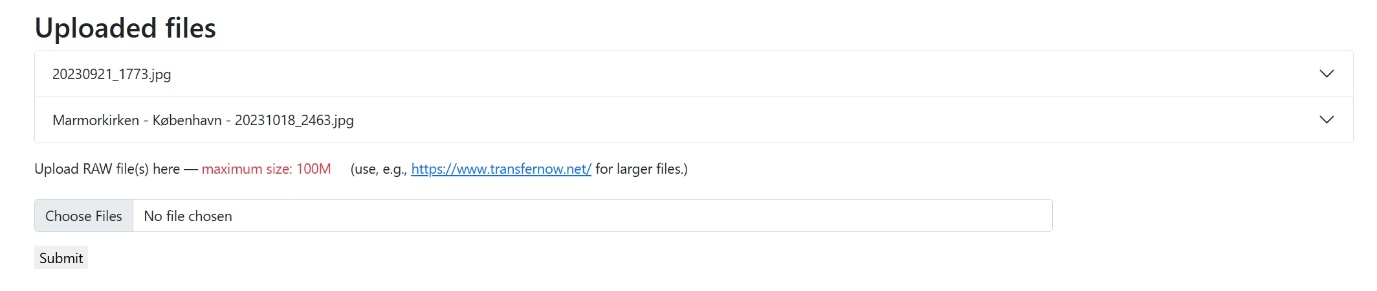
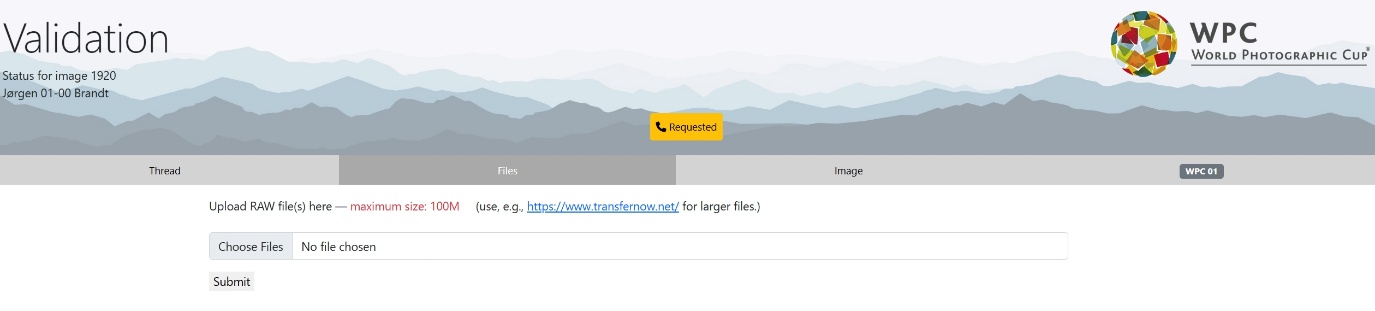
Files where you can upload supporting files (RAW/JPG/PDF/PSD/PSB etc.).
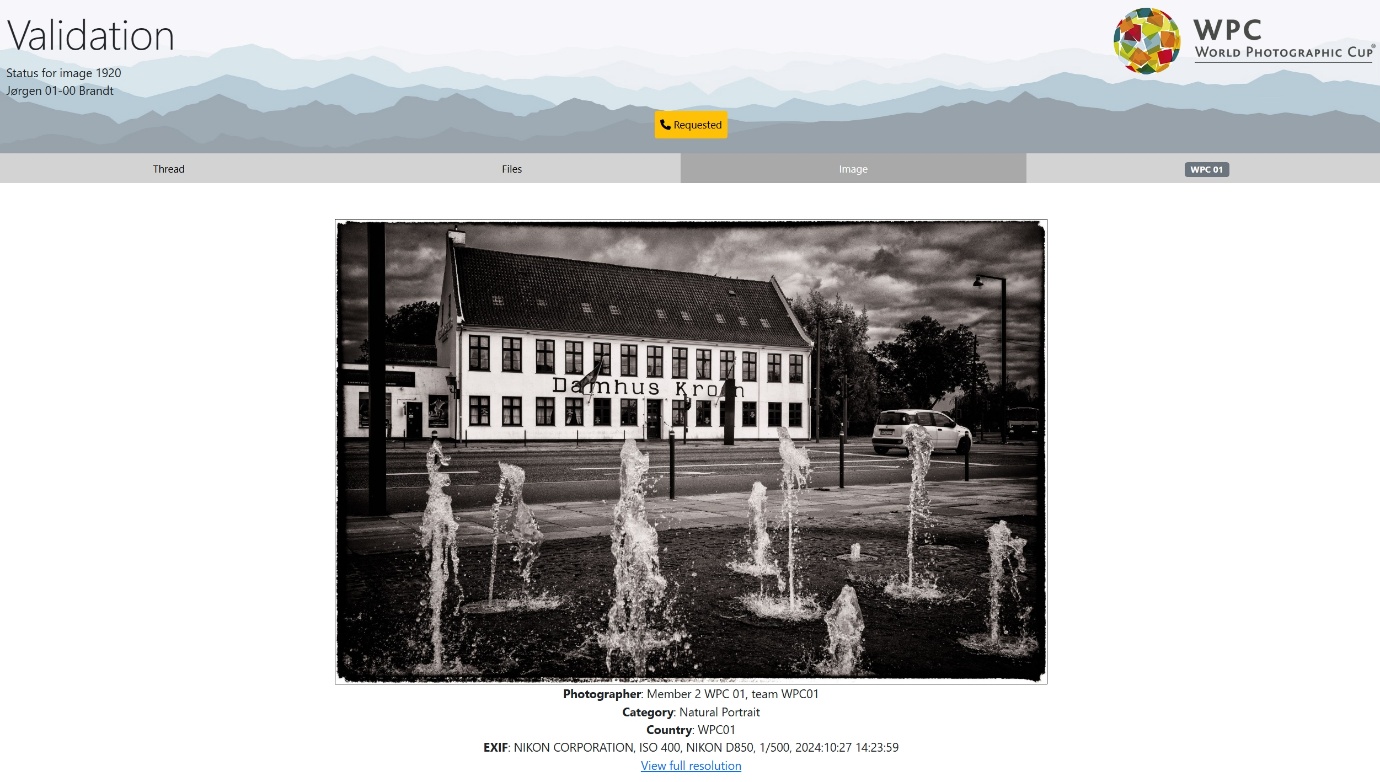
Image where you can see the image submitted to the competition.
Username is seen all the way to the right.
Thread
The initial message for participating Photographer / WPC Team Captain can be seen at the top in the Thread tab. You can write messages here too.
Before/After writing a message in Threads – remember to change the validation status to the new relevant status. If you want to do a Disqualification – this MUST be done in the overview list.
Image
The Submitted image for the competition including relevant information and the possibility to see a full resolution version (click link) or hover mouse over image for a relevant detail of image.
Files
Uploaded files of maximum 100 MB each. You can also upload by clicking “Choose Files” and “Submit”.
Once files are Uploaded by a submitting Photographer / WPC Team Captain you will see a list of the received files and the Status will change to Pending
A click on the down arrow by a filename will expand the view to see uploaded file and information regarding this upload incl a thumbnail preview. Click on filename to see image.
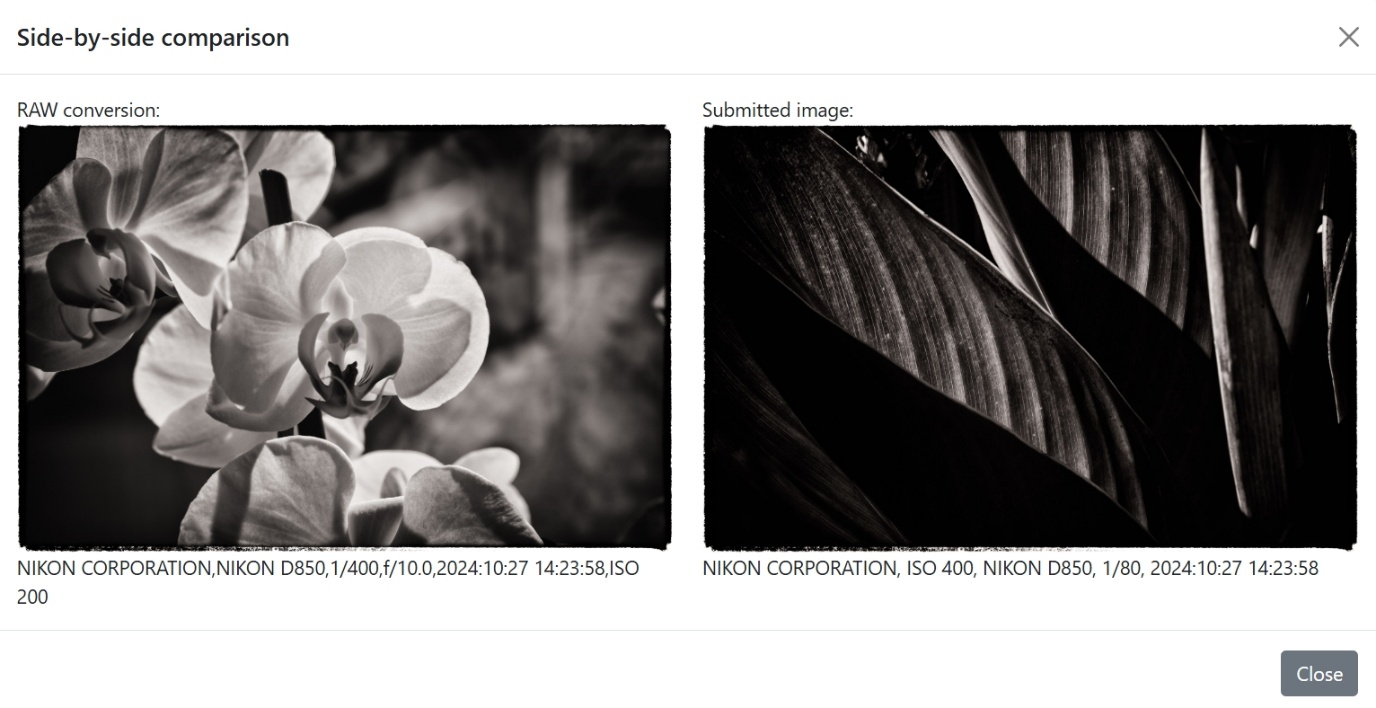
Click Compare if you would like to compare this uploaded file to the submitted competition image.
In this Side-by-side-comparison you see the 2 images, EXIF information if provided and can zoom in on details in either image. Zoom is done by placing the mouse over image and move as you prefer.
Note it is essential that submitting Photographers / WPC Team Captains provide all relevant information via the Validation interface, as that is the only way you can ensure that the information is considered when a submission is reviewed.
Do not answer messages regarding validation via email, WhatsApp, Messenger etc. – but request information is provided in user’s interface
In this PDF instruction we have used illustrations from both Team and Single image competition interfaces, but the information is relevant for ALL Validations for Teams or Individual Photographers.
Need to run a photo competition in your country, your club or amongst friends? Feel free to contact us! We can assist you, not only with the competition but also training for judges.

 For complete information on the Validation system please also consult the PDF instructions for “Validators/Staff” and “Photographers/WPC Team Captains”. This PDF focus on the interface and process for a Head Judge function.
 Create Validation Events
 Validations
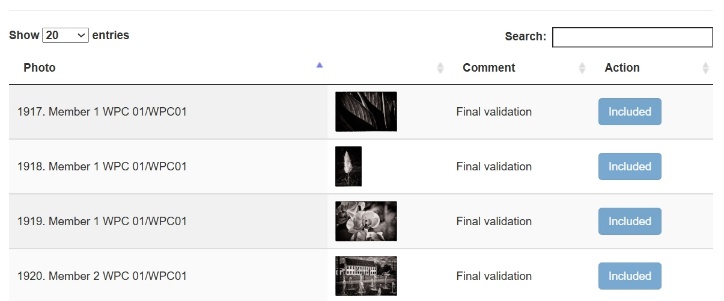 Edit:
 A click initiate process of requesting from all Participating Photographers / WPC Team Captains in the Validation Event
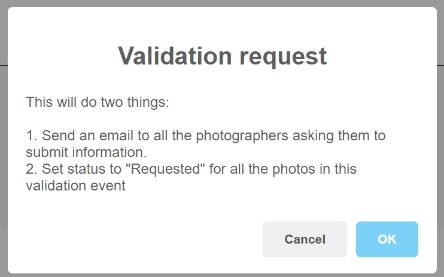 Illustration “Validation Request “ for both single image competitions and WPC.
 You may here:
 The process is the same for Pre-Validations and Final Validations.
 Thread where you can read messages from the Submitting Photographer / WPC Team Captain and give your response / provide written information.
 Thread
 The Submitted image for the competition including relevant information and the possibility to see a full resolution version (click link) or hover mouse over image for a relevant detail of image.
 Files
 Click Compare if you would like to compare this uploaded file to the submitted competition image.