JUDGES INTERFACE for LIVE JUDGING
 At https://photo-competition.software/ go to relevant competition login.
Login with your Judges account – on your Phone, Tablet or Computer as relevant.
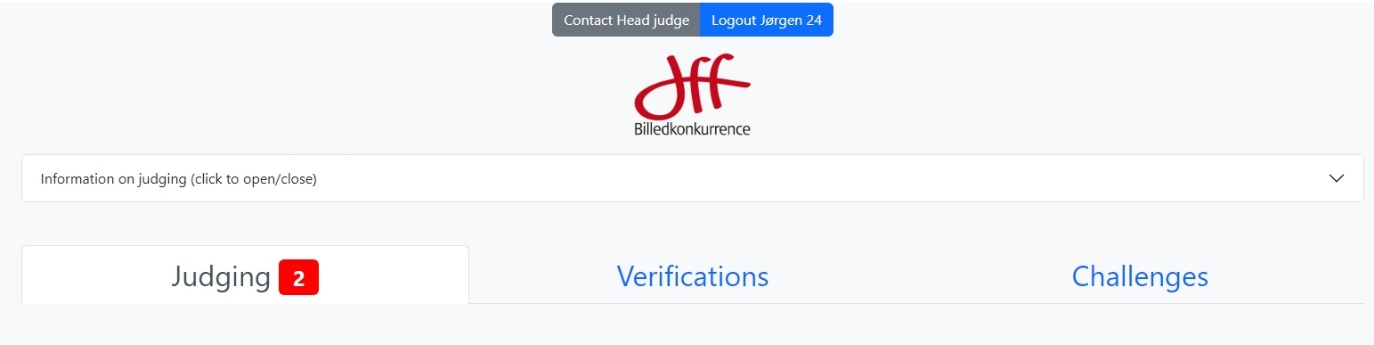
Logged in you will see a window like the above – with logo from competition you are to judge.
Judging Tab – see below
Verification Tab – only used for Online Judging
Challenges – only used for Online Judging
 In the top of the window, you will see Contact Head Judge to easily send email for the Head Judge and Logout User name to exit software
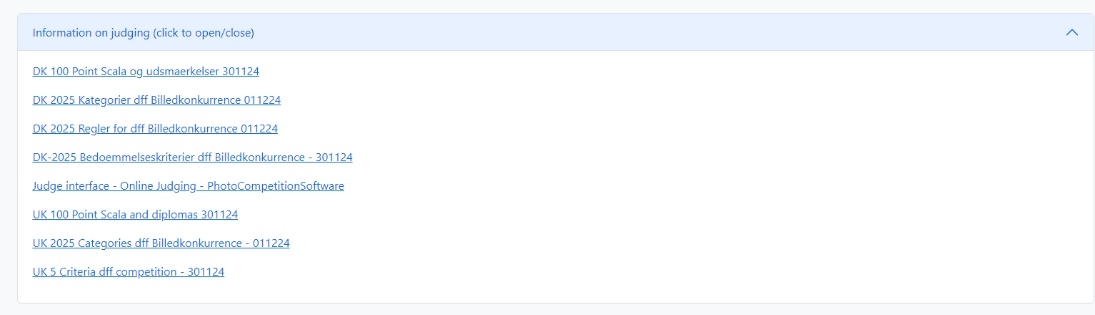
Below logo you will find a drop down menu Information on judging (click to open/close).
Placed here will be different kinds of information the organizers of the competition think you as a judge should have easy access to see. Click on relevant line to see/read a PDF file


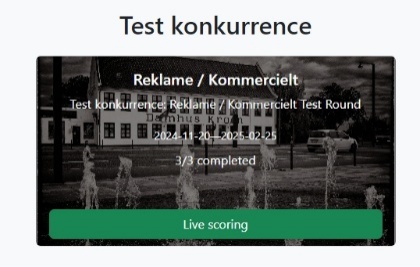 Judging Tab – Locate Competition and Categories you are to judge. Sample competition here is “Test konkurrence”. Sample category is “Reklame / Kommercielt”.
There can be many Categories to judge.
You can also see the dates judging is possible for this LIVE event, number of images judged/in category. Here demonstrated by 3 images judged of 3 in category.
Live scoring Click to enter Judging Window for the category as advised by the Head Judge.
Deadline has passed Judging not possible.
Judging Window
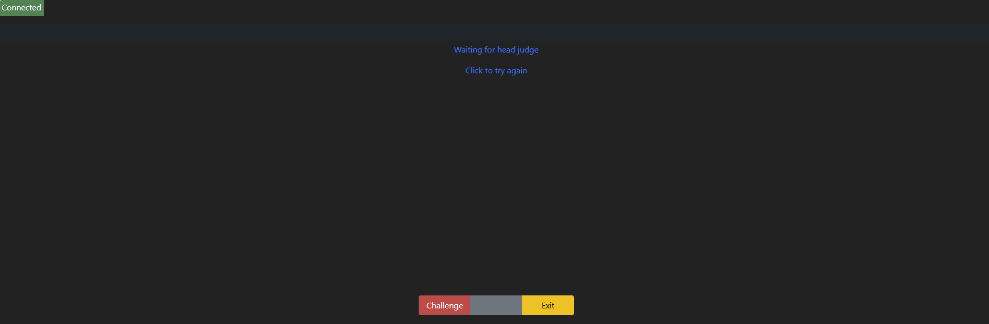 Initial judging windows will indicate Waiting for Head Judge
If you have entered the wrong category – it will say You are in the wrong category
Click to go to right one. 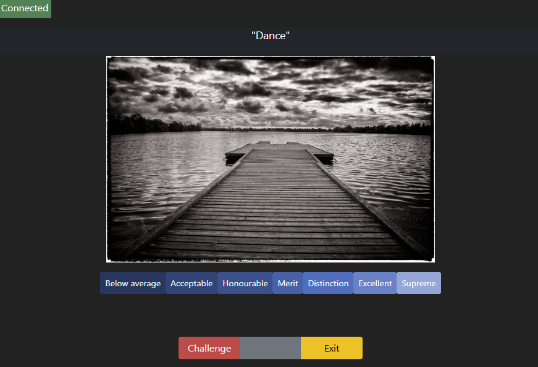
Top left Connected you are connected to the score server. When the Head Judge Ask for a score – you will see an image, f ex like here.
To score an image you FIRST click the relevant level – and then a score. Relevant levels (in shades of blue) is defined differently for different competitions, so here is only an example.
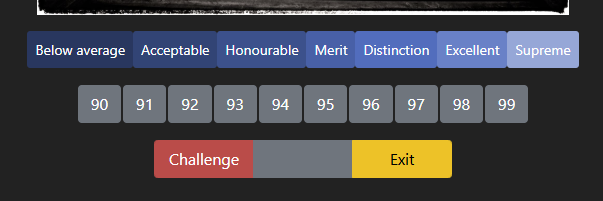 Click on the Level you find correct. In example is shown “Excellent”, which included scores from 90 to 99.
 You then click on the score you find appropriate. In the sample a score of 99 was used. The green area starts to blink “green score” / black. You can change your score if you want, but once you click on the blinking score and your score is confirmed, you won’t be able to change the score unless the head judge issues another score request.
 Once your score is confirmed, the display changes to Grey with ü
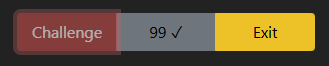 A Judge Challenge an image score clicking Challenge The Challenge is displayed on the Head Judges screen, in judges view indicated by dimming the Challenge bottom.
Other ways of challenges could be “Automatic” if one or more judge scores a defined number of points away from the average of all, or if the Head Judge initiate a debate of the image. After a Challenge has been debated – the Head judge can issue a re-score. You can then re-score as mentioned above.
Some of the levels may be equivalent to levels for a Diploma based on points (In sample from Honourable up to Supreme), but this will often vary depending on the Competition you are judging.
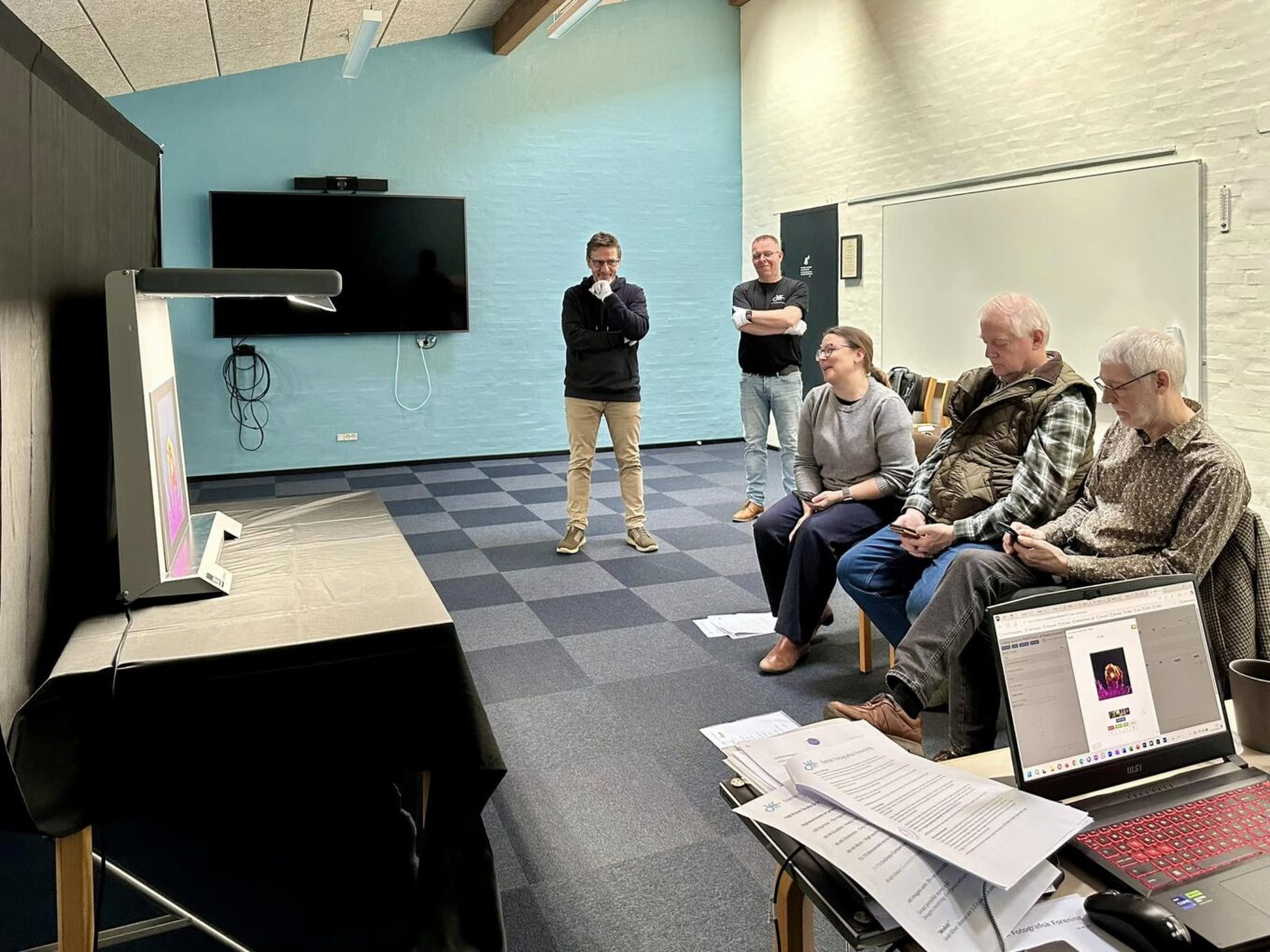
Functionality judging in the same room
Judging on Shared calibrated Screens or with Prints displayed you will typically judge using the interface on your Phone or Tablet. It is possible to use a computer also.
We recommend you connect to a good/fast local Wi-Fi network – and keep your phone in “Flight mode”. We also recommend to either have your Phone connected to a wall-charger of a Power Bank, as keeping the Phone on for hours uses a lot of power.
We also recommend you turn your Screen Saver / Screen Time out OFF to ensure you are always connected to the Photo-Competition.software, as the Screen locking will disconnect you. If you are suddenly disconnected, simply reload the screen and ask the head judge for a score request.
Typically you are requested NOT to zoom on your screen, but either ask for the operator to zoom on the shared calibrated screens or approach the print on display to evaluate closer.
Zoom functionality will most often be disabled, as screen is not calibrated.
Judging LIVE at individual locations
Live judging at individual locations, which could be all around the world, requires all Judges and the Head Judge to be live and logged in at the same time.
We recommend you connect to good/fast local Wi-Fi.
Since a Phone – or even a tablet – does not always display the images correctly we recommend always using your computer with a good, calibrated screen.
We also recommend you turn your Screen Saver / Screen Time out OFF to ensure you are always connected to the Photo-Competition.software, as the Screen locking will disconnect you.
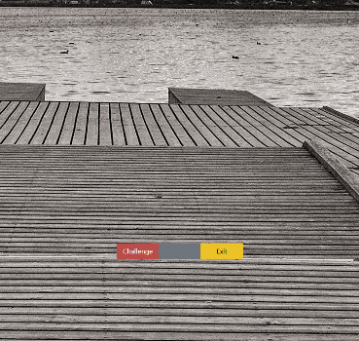 Zoom functionality will most likely be enabled. By moving your cursor over the image, you get a 100% zoomed in image. Move cursor to study different areas of the image. Zoom to 100% means displaying one image pixel to one screen pixel. Via the 100% zoom you can evaluate the image in more detail.
You will see the original submitted image when zooming to 100%. The “un-zoomed” image is generated by the Photo-Competition.software
For Judges and Head Judge to be able to speak a Zoom, Messenger, Skype, Teams or other online meeting must be set up at the same time.
All mentioned judging functionality will also work for Judging LIVE at individual locations.