HEAD JUDGES INTERFACE for LIVE JUDGING
We have created 3 separate PDF-instruction files for Live Judging’s:
- LIVE LINK setup (Digital Live Judging, Audience View or Live Broadcast View)
- JUDGE LIVE interface
- Head Judge LIVE judging interface (this pdf)
We suggest a Head Judge and/or organizer of the Live Judging Event study all 3 PDFs
Log In
At https://photo-competition.software/ go to relevant software login.
Login with your Office or Administrator account on a computer.
In the “Judging” Tab – go to the relevant Judging event & Click View (to the right)

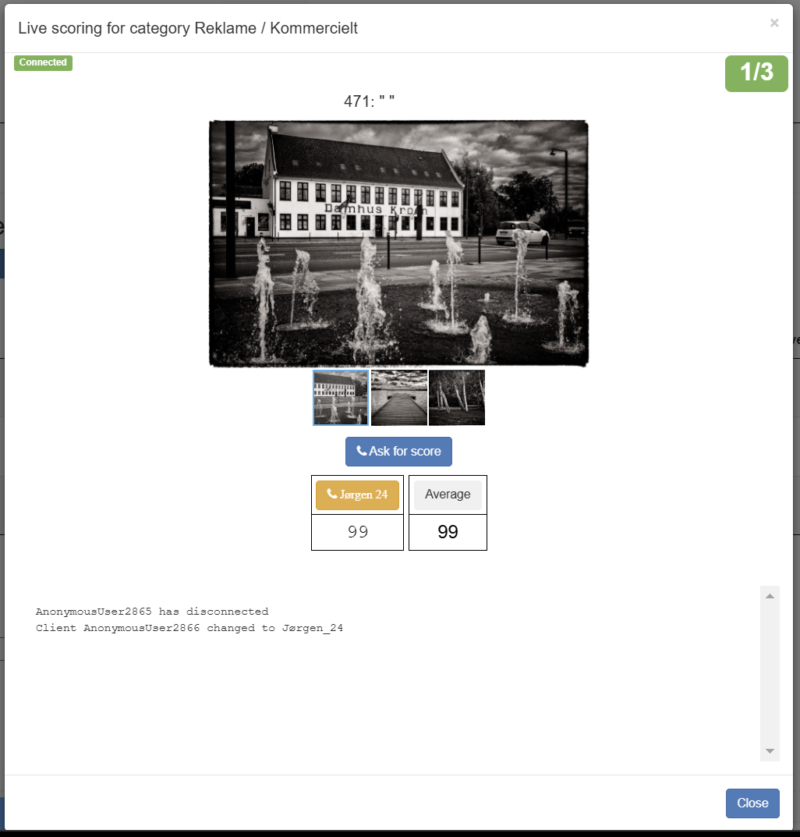
 Then click on the blue bottom Live scoring, which opens a pop-up window with the Head Judge Scoring interface.

Content of Head Judge Interface
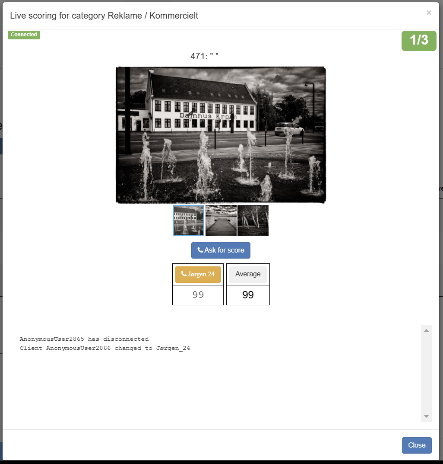
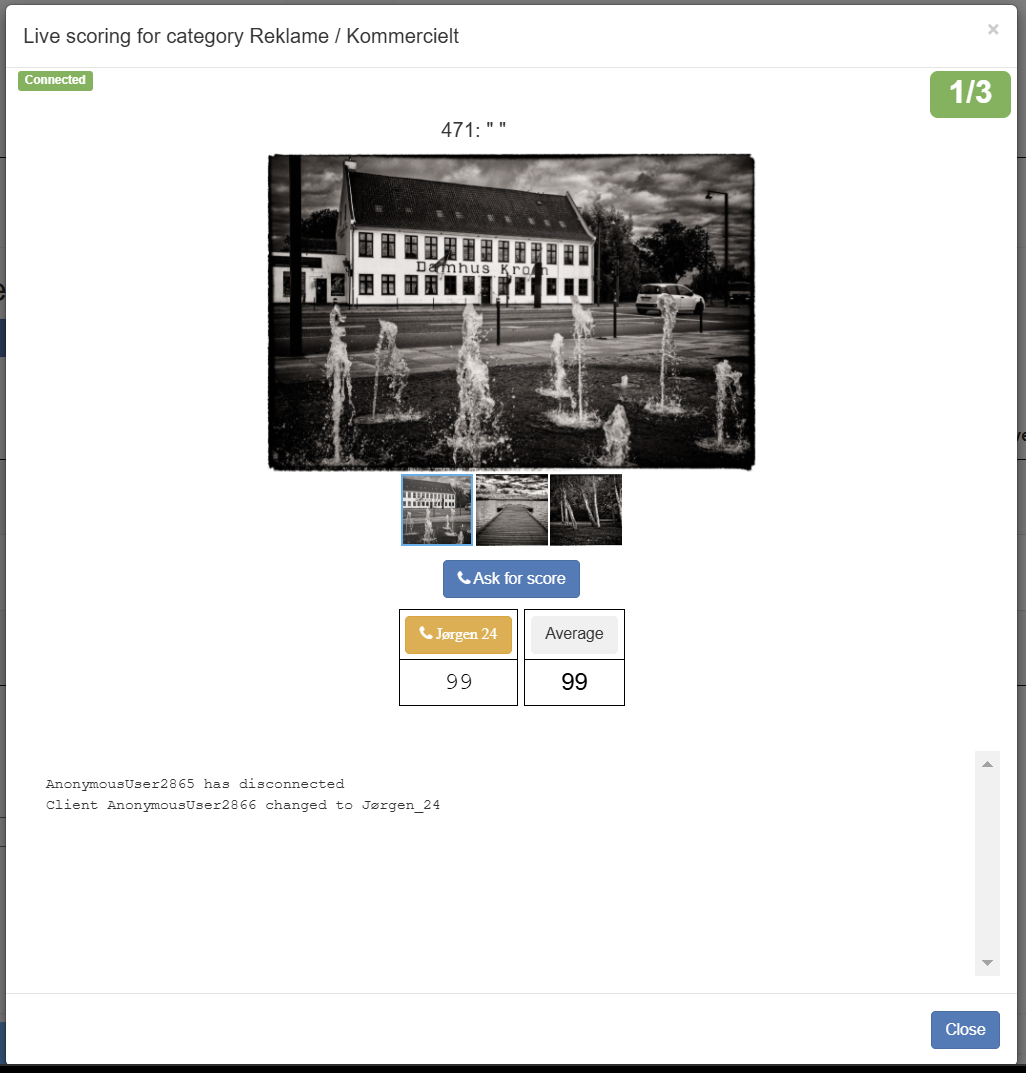
Live scoring for category name of category
Connected indicates you are connected to
Photo-Competition.software
1/3 indicated number of images judges / out of number of images in category. Sample here 1 of 3 total
Number above image is a unique image number in the Photo-Competition.software for that organizer.
The image title would normally appear within “…”. The large image is the “current” image to be judged.
The Row of images below is thumbnails of images to be judged. When a category has many images, you can scroll through them.
Close to exit Judging of this category – and maybe move to a new category.
In bottom – a log of events; like for example a judge scoring etc.
 Functionality of Head Judge Interface
Ask for score sends an image to “Judges” and “Live Link” interfaces (see separate PDFs for instructions) and ask the Judges for scores. Once a Judges has submitted a score, the judge can not change that score unless requested by Head Judge.
Important: head judge must wait for images to load before asking for a score.
Judge ID One per Judge assigned to the Category. Color gives information of Judges status, se below
Average Average of entered scores. If a judge does NOT score an image, that judge does NOT contribute to the average.
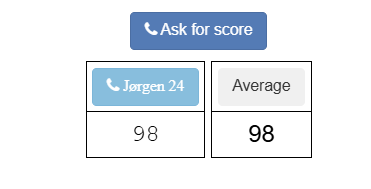 To start judging a specific image – Head Judge should click on Ask for score. All judges & “Live Link” users should see image. Judges should be able to enter a score. All connected judges should see be marked as “blue”
With Judge ID in blue – the Judge is connected and has image to be judge on screen.
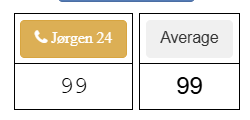 With Judge ID in “orange” the Judge is connected but does NOT have image to be judge on screen. Click on judge ID sends image and score request to that individual judge without interfering with the other Judges status. Works both with a first score – and re-scoring.
Changing the order in which the images are presented/judged – see below.
 Challenges
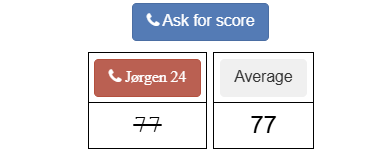
If a Judge Challenge an image score clicking Challenge in Judges interface. The Challenge is displayed on the Head Judges screen marked in red and with a line through the judges’ score.
Other ways of challenges could be “Automatic” if one or more judge scores a defined number of points away from the average of all. In case of an “Automatic” challenge the challenge could be from more than one judge at the same time. The Head Judge can also initiate a debate of the image.
After a Challenge has been debated – the Head judge can issue a re-score from all judges. Judges can then re-score as mentioned above. Re-scoring requested by click on blue “Ask for rescore”. Re-scores can be made as many times as Head Judge or Organizer allows, but typically only one re-score after a debate. The last scores overwrites previous scores and the last scores stand.
Procedures and use of Challenge can be different from Competition to Competition or Organizer to Organizer.
Image order
When you click the blue bottom Live scoring images are presented in the order they are displayed (and possibly selected).
Initially images are in a scrambled order with the intend of not showing several images form same photographer right after each other.
You can sort the images with the arrows on top of each column (Titel/Owner/Score etc). Images will then – in Live scoring – be shown in that order.
You can also select a set of images – and only those images will be shown. Hold “Shift” down to select a group of connected rows of images. Click “Ctrl/Command” to select individual rows of images. The 2 selection methods can be combined.