
April 16th, 2025
Creating a New Judging Event
Via the Tab “Judging” at the top you click “New Judging Event”.
A judging event will always be centered around a “Category” as defined in the “Categories” tab, from a specific competition defined in the “Competitions” tab
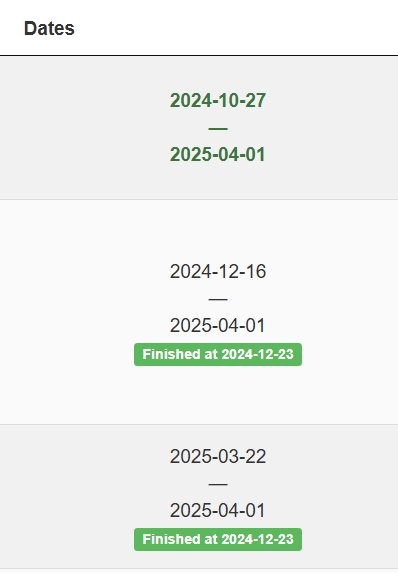
In “Judging” Tab you can see dates for existing judging events. Those dates can be in 3 stages. Dates in black indicates that interval for judging has passed, in BOLD GREEN indicated final judging date is in future. However, if a green Finished at …. Is visible the competition ended.
An image only has one score per competition, which initially is NULL. (e.i. “no score entered”)
An image may appear in more than one judging round. Each time that judging round is collated, the score for that image is updated.
So, for example, you may have an initial judging round for digital judging, and then later another judging round for online judging.
Types of Judging events
A Judging event may be based on:
- New submissions from Photographers
- Another judging event in the “same competition”; f. ex. If you want to do a “closed” judging after a “print competition”. The image(s) score(s) in that specific competition is updated with latest collated score.
- Promoting/Copying submissions from a judging event in a competition “First competition” into a “new/other competition” “Second Competition”, f. ex. If you have a competition with first a “digital competition” online and then a selected set of images goes to a “print competition” afterwards.
As you see, Judging Events can be used both within a competition but also across competitions if your competition has several “stages” like an initial version followed by f ex a limited final etc. This gives flexibility.
Interface for “New Judging Event”
Creating a new Judging round you need to set a series of parameters/variables:
Competition: as created in Competition tab
Category: as created in Categories tab
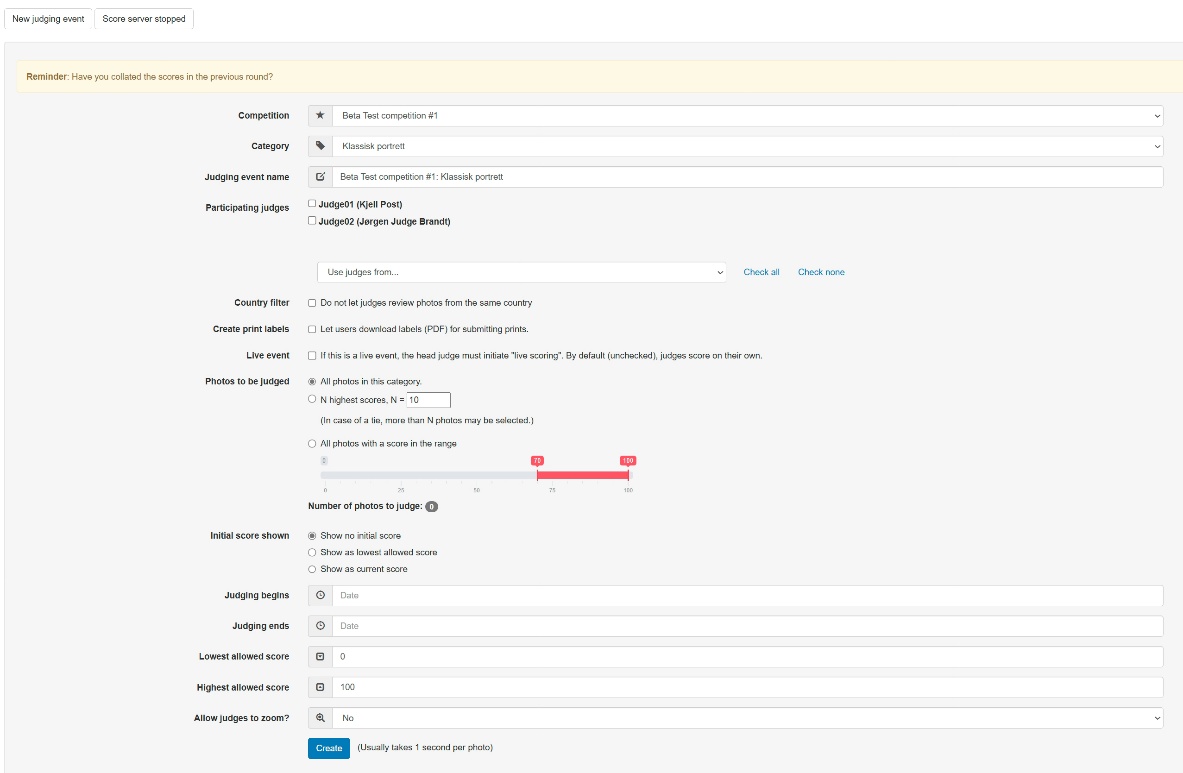 Judging event name: Default is “Competition name”: “Category name”
In 2nd or even 3rd+ stage judging events we suggest adding a description of the judging event stage
Participating judges: Mark the selection of judges needed. Judges listed are created
via the User tab. Only Judges marked “Active” are on list
“Use judges from.” It is possible to re-use judges marked in a specific judging event. It is also possible to select all or none as a start. Judges used are marked with a P
Country filter: You can exclude judges from seeing/judging images from
their own country, which f ex is done in World Photographic Cup.
Create print labels: In print competitions the participants can be given an option to print labels for the back of mounted images
Live Event: Un-checked gives a judging event where judges, at individual times within a timeframe, can score the images in an interface designed for that. Checked gives a LIVE judging event, where judges at the same time under leadership of a Judge Chair evaluate images either online or print in the same room and in an interface designed to facilitate LIVE scores. Both types of interfaces are described in separate PDFs
Photos to be judged: “All photos in this category” typical for first/initial judging af a category in a competition with all submitted images by participants
“N highest scores” where N is a variable number of Top images from a previous judging round. Typical used for 2nd+ “final” of judging a category; can be “online” or “live”
“All photos with a score in the range”, where range can be from f ex 65 to 100, 80 to 90 or the combination you would like. This also mean you could create multiple 2nd+ stage judging rounds f ex of images in different intervals.
Initial score shown: “Show no initial score” gives a blank score of “nothing” for an image
“Show as lowest allowed score” all images are assigned the minimum score defined in “Lowest allowed score” below
“Show as current score” to assign the score an image had in the previous judging round. Here it is important to have
“Collated” scores in the previous judging round before creating the next judging round.
Judging begins: First date judging is possible
Judging ends: Last date judging is possible
Lowest allowed score: Setting a possible minimum score, f ex that judges can only score from 65-XX. Used to “eliminate” the influence of tactical scoring.
Highest allowed score: Setting a possible maximum score, f ex that judges scan only score from XX-90. Used to “eliminate” the influence of tactical scoring.
Lowest/Highest score: In combination can f. ex. be used to re-score/fine tune scores for a specific diploma range.
Allow judges to zoom: Do you want judges to be able to evaluate images both as “screen size” and as the original submitted file at 100%.
When a photographer submit images we generate a medium size image of 2048 pixels at the longest side, which is the image displayed to judges initially.
For both “online” and “live” judging judges may or may not be able to zoom to evaluate the original submitted file in 100% (which is pixel to pixel in screen resolution).
For “online” judging’s (individual or same time) we suggest to allow zoom. For “same room” LIVE print judging, we suggest to NOT allow zoom, as judges should only evaluate the print they see.
Create Creates a judging round with the selected parameters
EDIT Judging round Too edit a created judging round – see separate PDF