Batch Creating Accounts in Photo-Competition.software
Edited February 9th, 2026
Batch Creating Accounts
in Photo-Competition.software
If/When you need to create a larger number of new Accounts for different user types in Photo-Competition.software this feature will help you.
This tool can create all types of accounts – except, for safety reasons, Admin accounts.
Go to Plugins-tab
Find “batch-add-users” – and either click the batch-add-users bottom or the arrow symbol to the left of it.. First option opens an area of your present browser window, where you can use the plugin. The second option open a new browser window for you to work in with this plugin.
You need a CSV formatted file with the user information. This file can be created from a Spreadsheet program like Excel (or similar) – or you can create it in a basic TEXT-editor. In Windows ensure you save the file in UTF-8 format (or UTF-8 with BOM) to ensure special characters are displayed correct.
Format of data MUST be as follows:
role, first name, last name, email
One-line per user you would like to create.
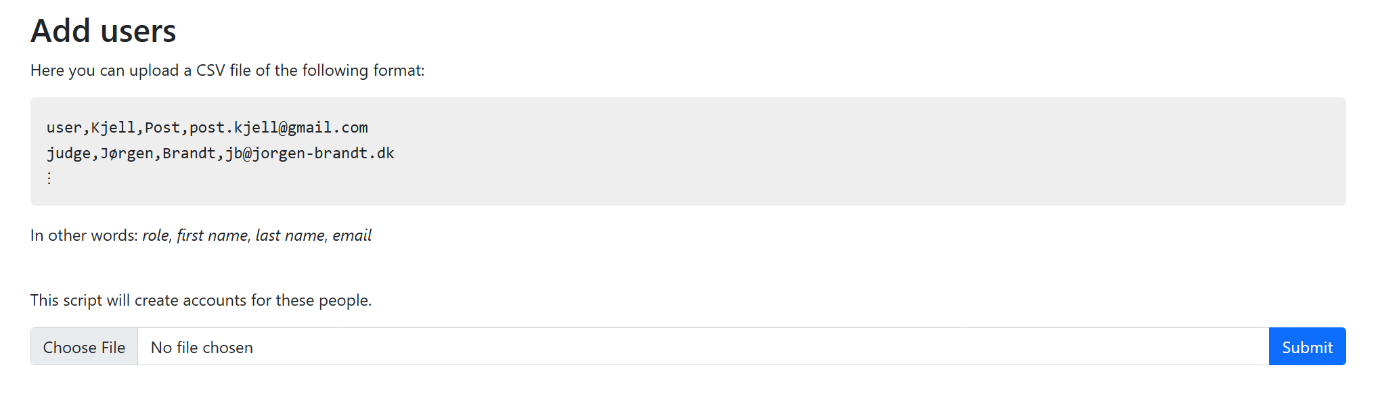 File must be saved as xxx.CSV
Click “Choose File” to select the file you want to upload. Then click “Submit”
You then get a list of potential users to import – and a possibility to edit the list.
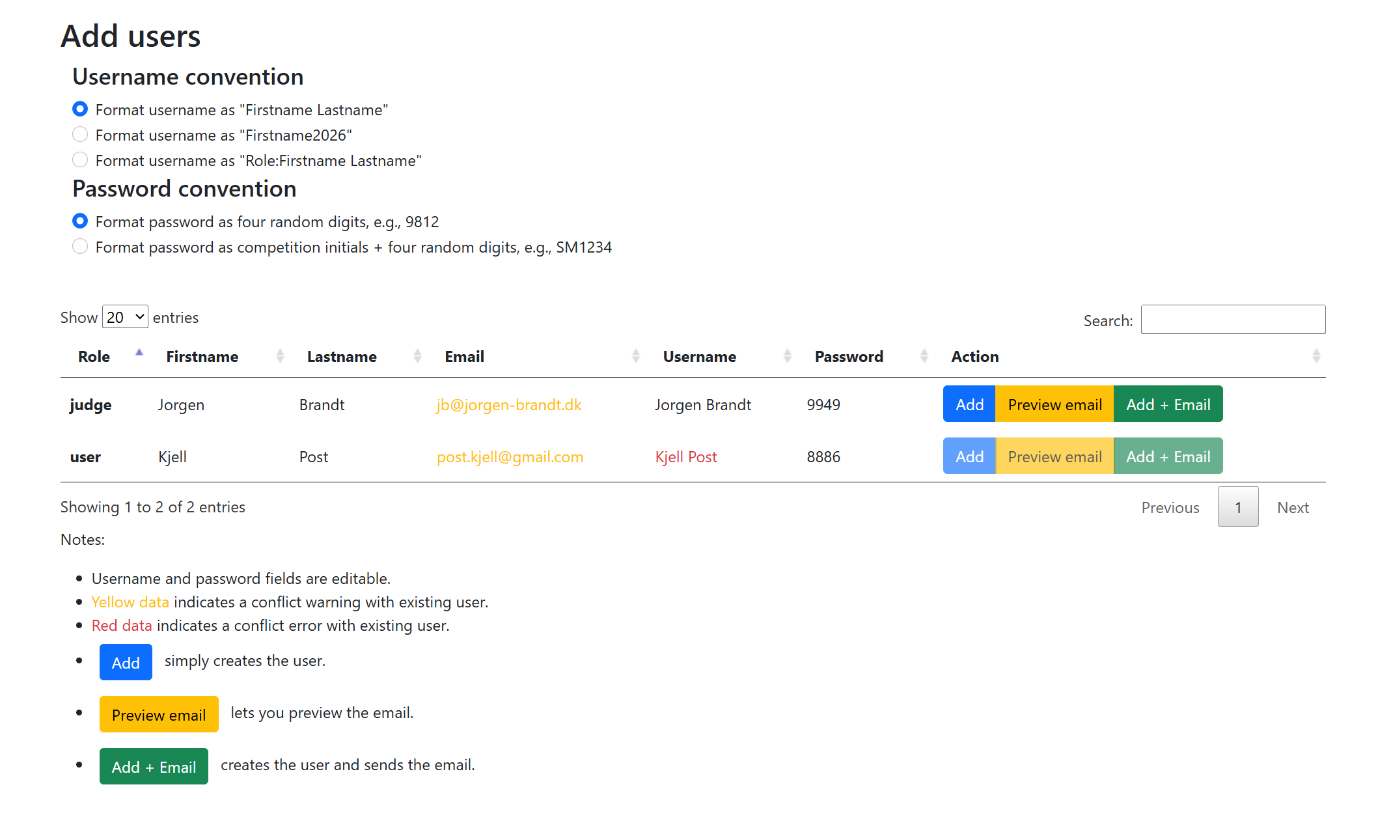
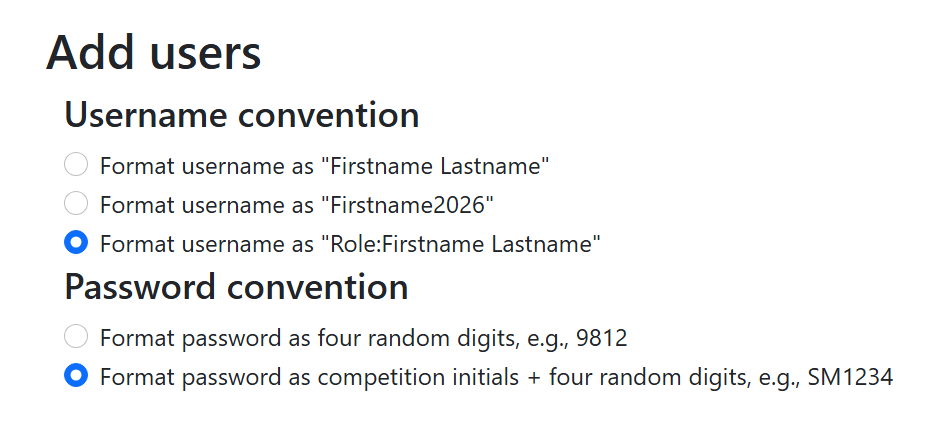 We suggest formatting usernames as Role:FirstName Lastname and password prefixed by the competition initials, so like this:
This makes it easier – especially for people with multiple function. The USERNAME and PASSWORD fields can be edited.
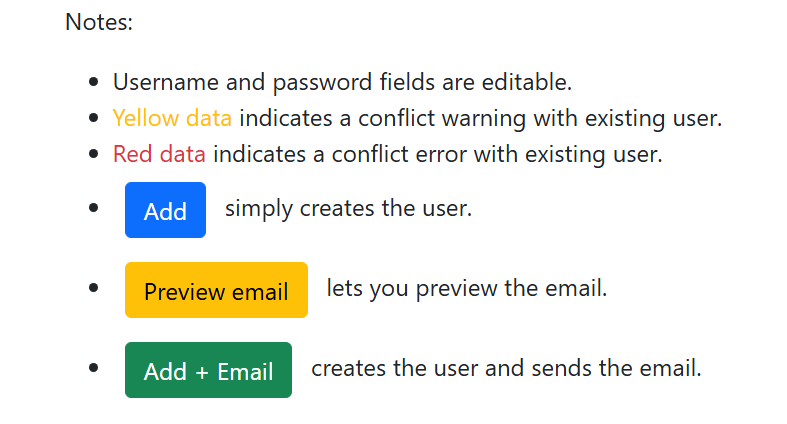 Below a guide to how you can edit the information for each user – and the warning given if a email or username conflicts with an existing user.
Usernames MUST be UNIQUE – but several user can have same email address.
ADD: Creates user without sending email to the new user. if you create a user like this, you will have to write down the passwords for later, or otherwise the users will have to request a new password. The system does not store passwords in clear text.
Preview email – well – previews the email that would be send for the user if creating an account. It uses the “user-login-pw.html” template in the admin Templates tab.
Add + Email – as shown in illustration – creates user and send email to the new user. The email CAN be edited if you want to insert more information. However – do NOT edit the initial information in this window.
Each listed potential new user is created ONE by ONE – when you for each click Add+Email. The most common scenario is to use Add+Email to create a user and send them an email. You do this one by one, and we would suggest checking that you receive the first email and that it looks good, especially if you have changed the “user-login-pw.html” template.”