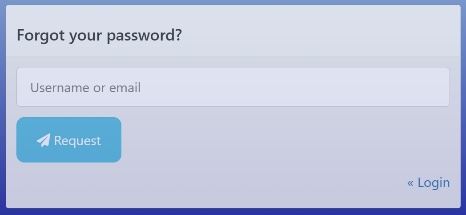
If you do not remember your password, request a new password via “Forgot your Password
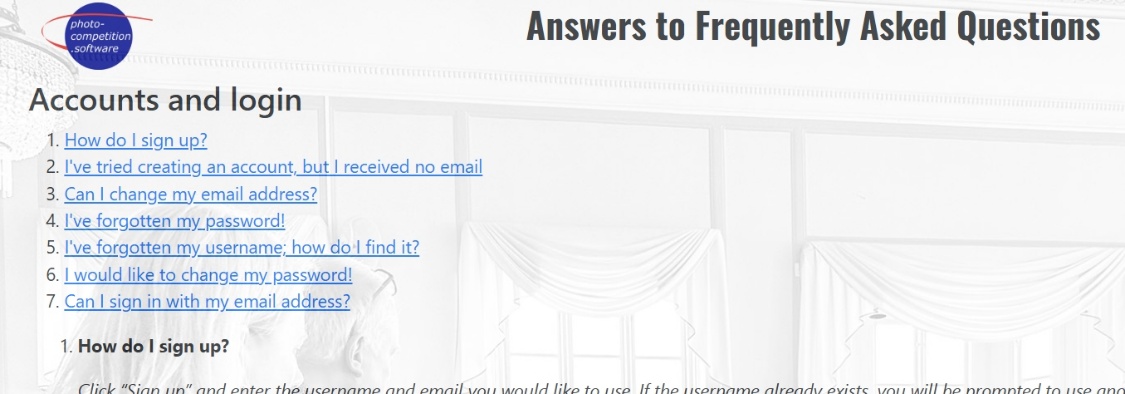
FAQ – Frequently Ask Questions – Follow link for more information
Menu
Top right/Bell – a welcome message and reminder to fill in the “My Profile” page”
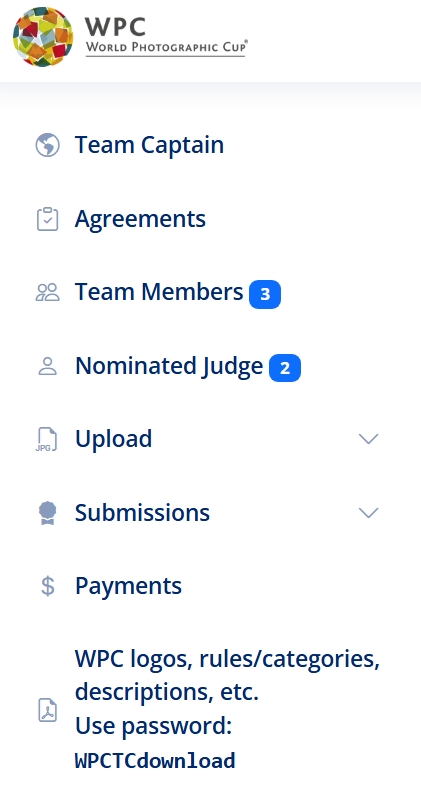
To your left is the Overall Navigation Menu
Team Captain: Profile info for the TC
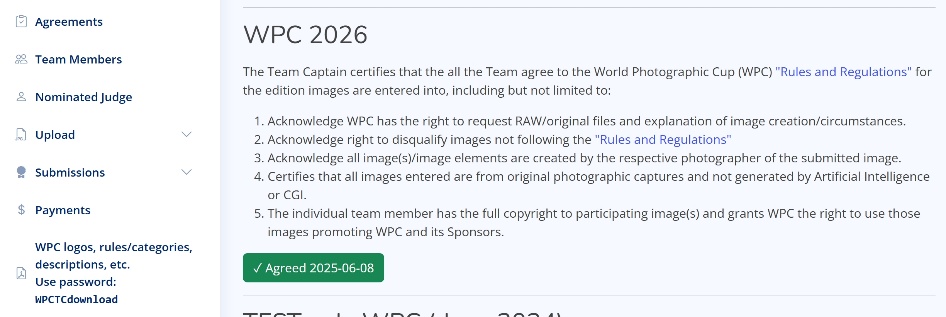
Agreements: MUST be signed for participation – and is is done per Edition for WPC (so each year)
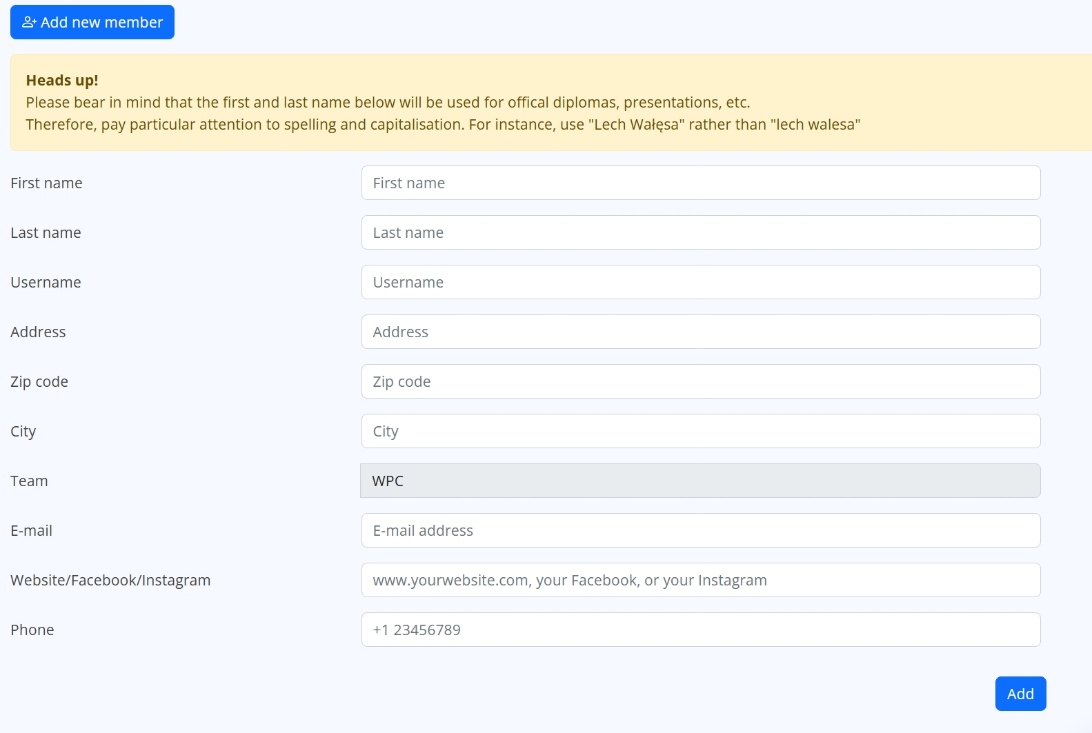
Team Members: Enter information on Team Members. Remember to enter correct email and web etc for each and all members individually
Nominated Judge: Here you may select who is your Teams nominated judge.
Upload: Uploading images
Submissions: Submitted images from the upload image into relevant edition & category of WPC
Payments: Pay your submission fee pr. Edition of WPC
WPC logos….: Use link & Password for a Team Captain Download area
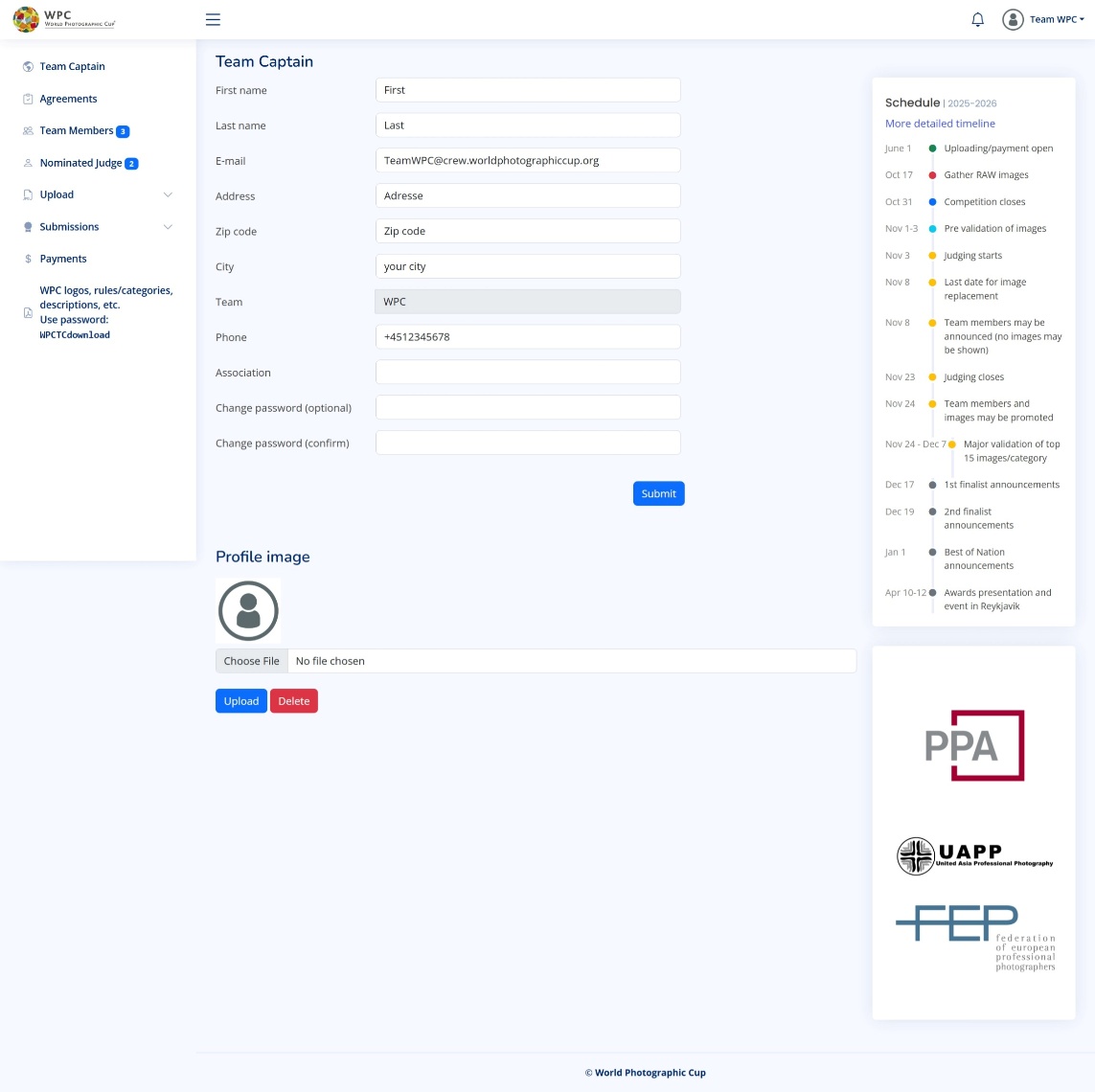
Team Captain
Please fill in ALL information for you as Team Captain
You can here change your Password – if you like
Your email can only be changed by WPC Webmaster or WPC Software contacts
You may Upload a portrait of you here too
Note SCHEDULE to the right
Agreements Per edition of WPC you need to approve an agreement.
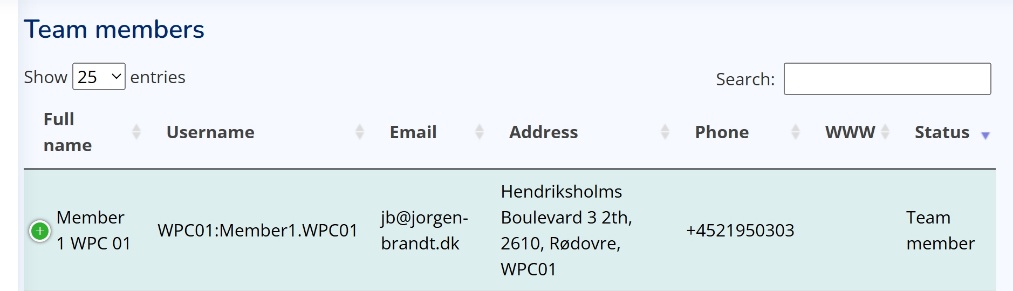
Team Members Overview of Active and Inactive Team Members
Active is highlighted by a green background, while Inactive uses the normal background.
It is best to keep Past Team members here, so they may access past diplomas and Social Media slides.
To Activate/Inactivate/Edit a Team Member use “scroll down menu” to the right (or click + to the left on small screens).
When you Add new member please use the individual Team Members actual email and contact info for us to best provide diplomas & Social Media slides for them – and to promote them with Website/Facebook/Instagram in our online galleries.
Nominate Judge
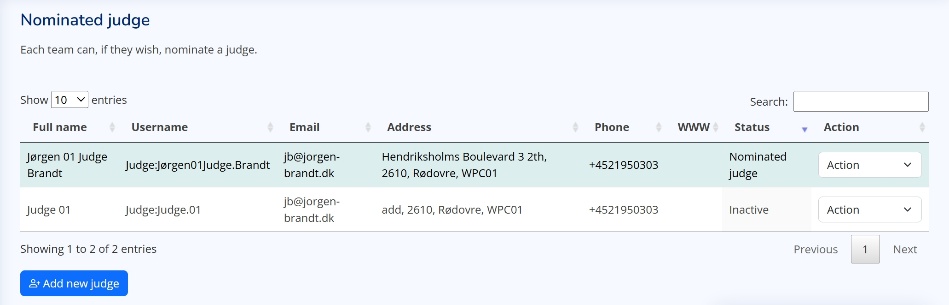
Active Judge on green background, inactive on white. Please fill out all information
Use Add new judge to add a judge
To Activate/Inactivate/Edit a Judge use “scroll down menu” to the right (or click + to the left on small screens).
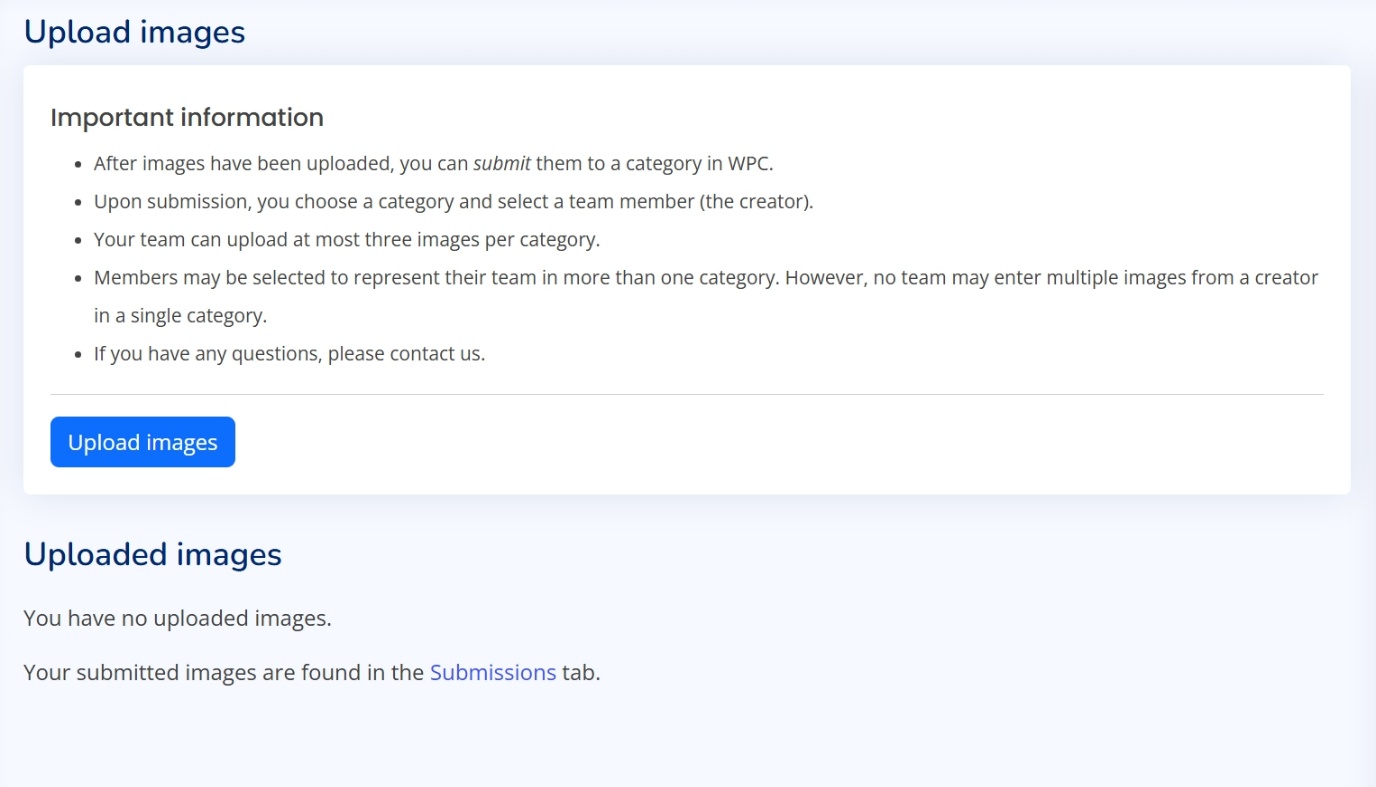
Upload Images
Please read “Important information” for each edition of WPC as rules may (or may not) chang per edition of WPC
The process is that you FIRST upload images via this interface – and that you AFTER upload can submit images to the open edition for WPC in relevant categories
Click “Upload Images” – and then click Choose to select images on your device OR drag images to the grey field “Drag files here”
Note image requirements …. Which will be checked in upload. If images do not fulfil the requirements, they can not be uploaded.
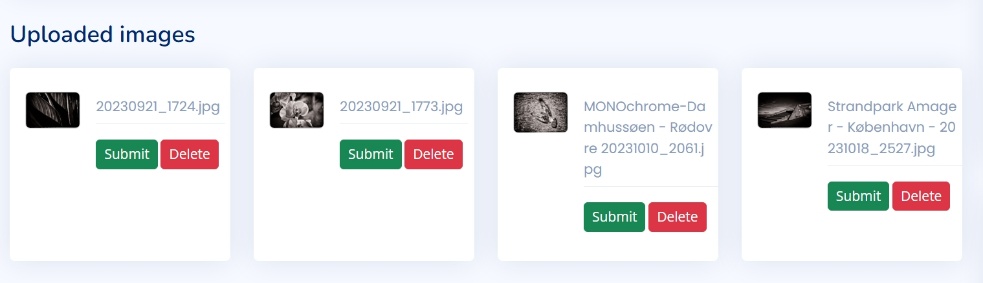
Once uploaded you get an Overview where you can Submit or Delete the image
Submissions
When in “Uploaded images” click on the Green “Submit button. A Submit pop-up window appears.
Here you select
Competition
Category
Team Member
for the relevant image
The software will check that you have not submitted more images per category than allowed, and that you do not submit more images per Team member than allowed.
Click OK to submit
Submission Overview
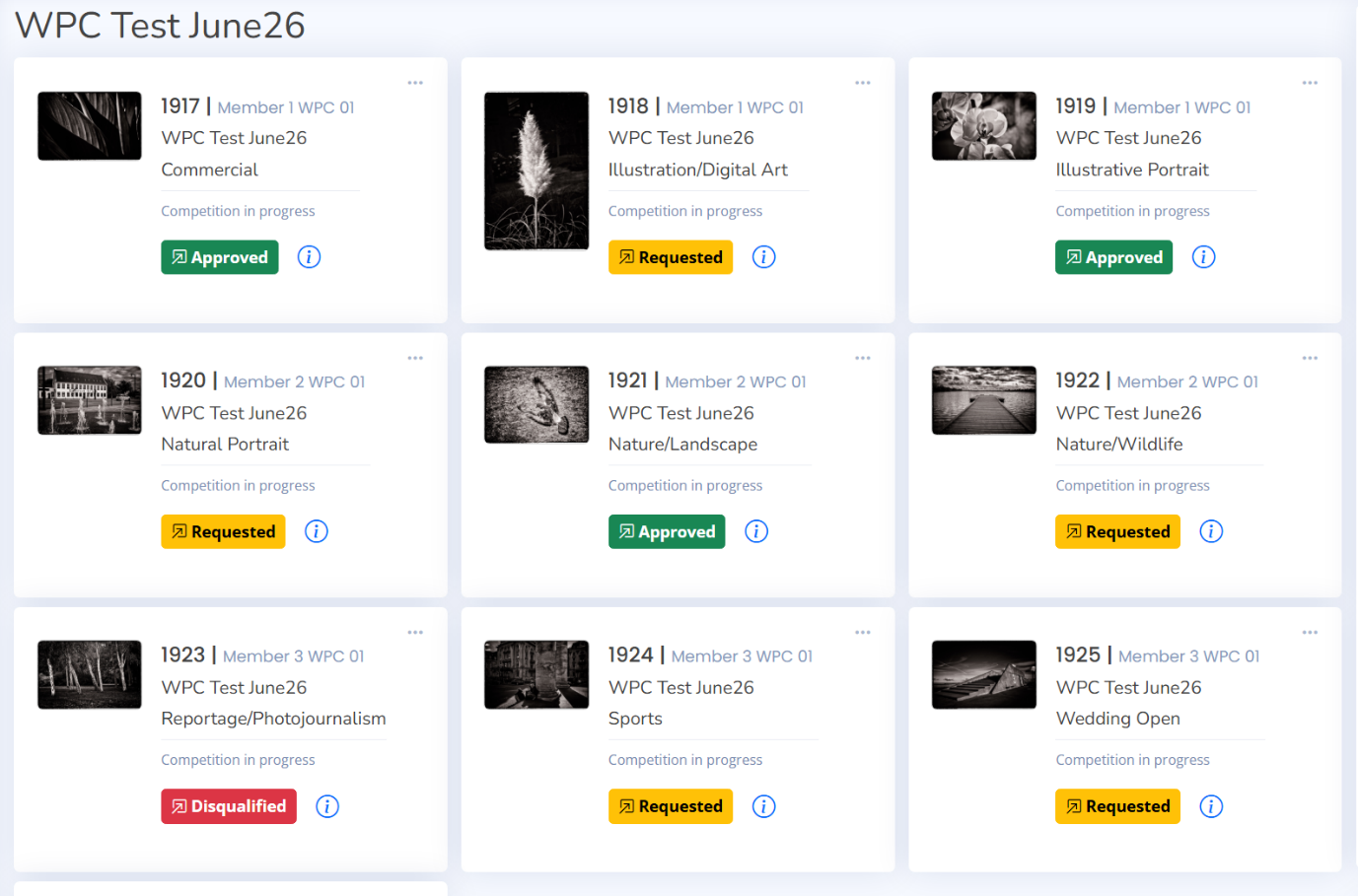
This sample shows an overview of submissions for “WPC Test June 26”. Your version will of course depend on your submissions.
Information in this view:
Unique image number
Team Member name
Competition image is submitted for
Category
Status of competition (like here “Competition in progress)
Status indication
A Light or Dark Blue, Green, Orange, Red STATUS indicator will become visible if the relevant image goes to active Validation, a process we may do to verify images relevance to category and/or that the images follow the rules of the competition. The Status indicator ONLY becomes visible when a validation is in progress. You will also be notified by email.
To engage in the Validation process – click the status indicator.
All TOP 15 images – and Best of Nation Images will be requested for a Validation Process.
Images may be selected for Validation before judging starts
Payment
Payments with a credit card can be made here. During the secure payment process a receipt will be sent to you.
Only paid submissions with an approved agreement will be judged.
Contacts:
If you have any questions/problems, please contact one of
Competition Committee: Don MacGregor competition@worldphotographiccup.org
Need to run a photo competition in your country, your club or amongst friends? Feel free to contact us! We can assist you, not only with the competition but also training for judges.

 Go to: https://competition.worldphotographiccup.org/ You will then get a login window like:

 Top right/Bell – a welcome message and reminder to fill in the “My Profile” page”
 Team Captain
 Team Members
 When you
 Nominate Judge
 Please read “Important information” for each edition of WPC as rules may (or may not) chang per edition of WPC
 Click “Upload Images” – and then click Choose to select images on your device OR drag images to the grey field “Drag files here”